> For the complete documentation index, see [llms.txt](https://docs.apolo.us/index/llms.txt). Markdown versions of documentation pages are available by appending `.md` to page URLs; this page is available as [Markdown](https://docs.apolo.us/index/apolo-console/apps/installable-apps/available-apps/ml-flow.md).
# MLflow
## Overview
[MLflow](https://mlflow.org) is the de‑facto open‑source platform for logging experiments, tracking metrics, storing artifacts and registering models. The **MLFlow Core** app on Apolo gives you a production‑ready tracking server with:
* A lightweight web UI
* Flexible metadata backend — SQLite or Postgres
* Built‑in artifact storage on Apolo Files
* Optional HTTPS ingress secured by platform auth
## Key Features
| Feature | How the Apolo App Helps |
| ----------------------- | ----------------------------------------------------------------------------------- |
| **Experiment Tracking** | Logs parameters, metrics & code revisions via REST API. |
| **Artifact Storage** | Push model binaries & notebook outputs to an S3‑compatible bucket (`storage:` URI). |
| **Model Registry** | Register & promote models with the same endpoint. |
| **Pluggable Metadata** | Choose embedded **SQLite** (PVC) or external **Postgres** DSN. |
| **One‑click Scaling** | Resize resources by switching the *Resource Preset*. |
| **Secure Ingress** | Auto‑generated HTTPS domain with platform auth. |
## Installing
There are two ways to deploy the app:
1. **Web Console UI** – click‑through wizard (no YAML).
2. **Apolo CLI** – declarative `app install` command that fits CI/CD. Refer to [Apolo CLI MLFlow](/index/apolo-concepts-cli/apps/installable-apps/available-apps/ml-flow.md) page.
### Installing via Apolo Console
To find more information about how to manage your installable apps using Apolo Console, refer to [Managing Apps](/index/apolo-console/apps/installable-apps/managing-apps.md).
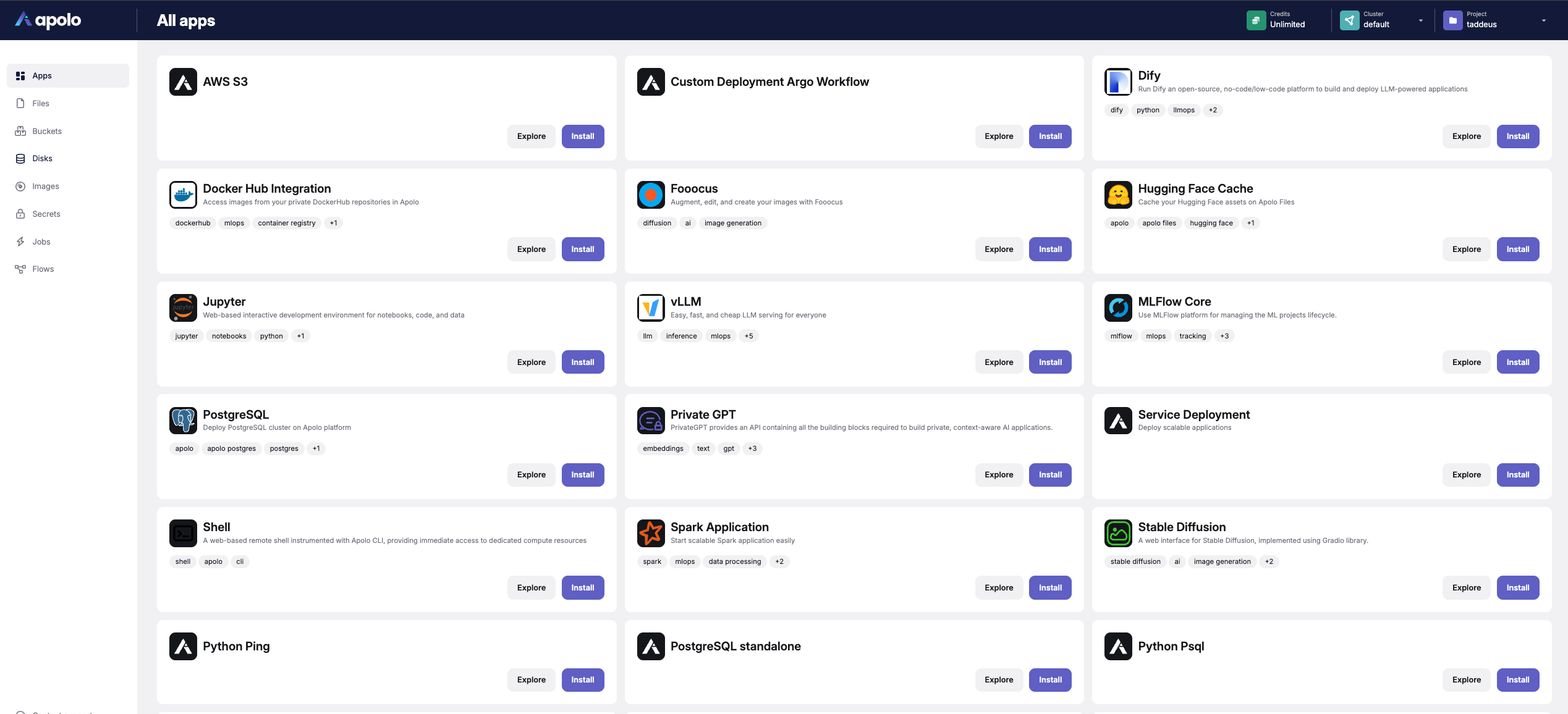
**Step 1** — Navigate to the Apps page, find MLFlow from the list and click the corresponding "Install" button. This will redirect you to the installation page
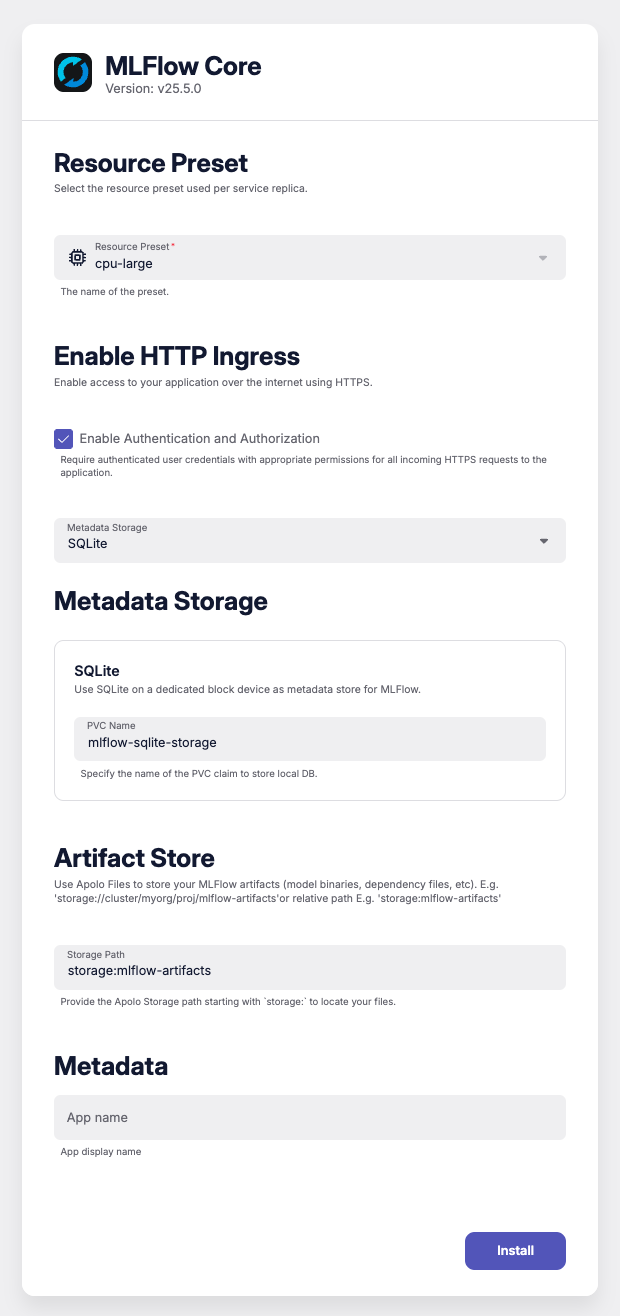
**Step 2** — Configure the application by filling the required fields.
| Section | Field | Example | Notes |
| ----------------------- | ------------------------------------------------------------------------------------------------------------------------------------------- | -------------------- | ------------------------------------------------------ |
| **Resource Preset** | `cpu-large` | 4 vCPU / 8 GiB | Pick any preset. |
| **Enable HTTP Ingress** | `auth = true` | — | Creates `https://mlflow‑.apps..apolo.us`. |
| **Metadata Storage** |
| Choose one backend. | |
| **Artifact Store** | `storage:mlflow-artifacts` | Path in Apolo Files. | |
\
**Step 3** — Click "Install" to initiate deployment. You will be redirected to the application details page where you can monitor the installation progress and view application outputs. For instructions on how to access the application, please refer to the [Usage](#usage) section.
### Usage
After installation, you can access MLflow in two ways:
#### Accessing the Web UI
1. Go to the **Installed Apps** tab.
2. Find your MLflow app and click the **Details** button.
3. Click the **Open App** button at the top of the app details page to launch the MLflow web interface in a new browser tab.
#### Using the MLflow API
Use the CLI to set the `MLFLOW_TRACKING_TOKEN` with the token from your session (only if you enabled platform auth)
```bash
export MLFLOW_TRACKING_TOKEN=$(apolo config show-token)
```
The only requirement is to expose `MLFLOW_TRACKING_URI` and a basic‑auth header.
```python
import mlflow
from mlflow.tracking import MlflowClient
TRACKING_URI = "https://apolo-taddeus-mlflow-core-d660e438.apps.apolo.us"
mlflow.set_tracking_uri(TRACKING_URI)
mlflow.set_registry_uri(TRACKING_URI) # optional
client = MlflowClient()
print("Current experiments:")
for exp in client.list_experiments():
print(exp.name)
```
### References
* [Mananing Apps via Apolo Console](/index/apolo-console/apps/installable-apps/managing-apps.md)
* [Managing Apps via Apolo CLI](/index/apolo-concepts-cli/apps/installable-apps/managing-apps.md)
* [Installing MLFlow via Apolo CLI](/index/apolo-concepts-cli/apps/installable-apps/available-apps/ml-flow.md#installing-via-apolo-cli)
* [**MLflow Official Documentation**](https://mlflow.org/docs/latest) – Comprehensive guides covering Tracking, Projects, Models, and Registry
* [**MLflow GitHub Repository**](https://github.com/mlflow/mlflow) – Source code, issue tracker, and community discussions