> For the complete documentation index, see [llms.txt](https://docs.apolo.us/index/llms.txt). Markdown versions of documentation pages are available by appending `.md` to page URLs; this page is available as [Markdown](https://docs.apolo.us/index/apolo-console/apps/installable-apps/available-apps/terminal.md).
# Shell
**Shell** provides a fully-featured, in-browser terminal integrated with the pre-installed and authorized Apolo CLI.\
It allows users to run Apolo command-line tools and clients instantly—without needing to install or configure anything on their local machine. Ideal for managing resources, running jobs, and interacting with the platform securely and efficiently.
## Accessing the Shell App
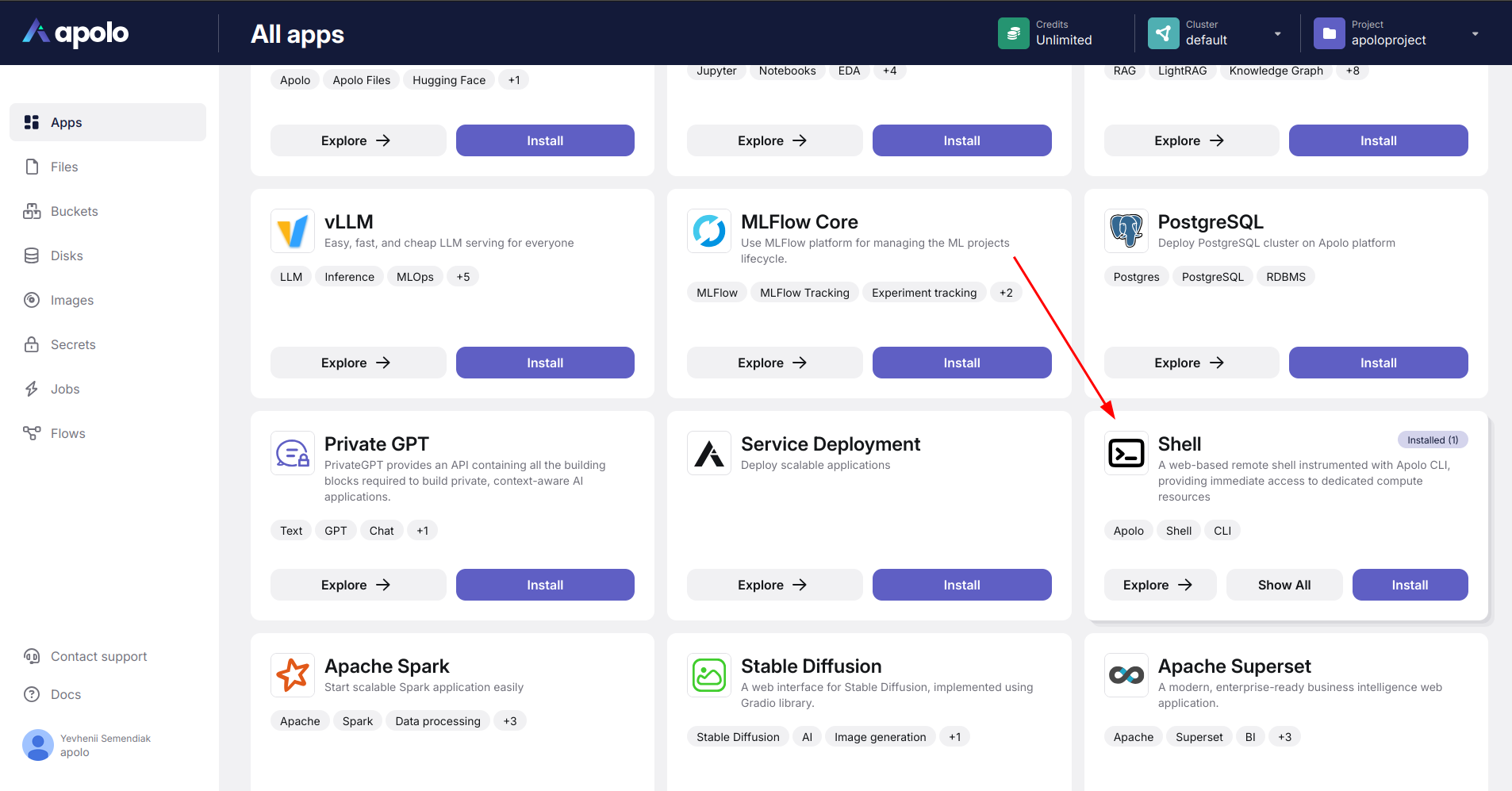
Navigate to the **Apolo Console** and click on the **Apps** section from the left-hand navigation menu. You will see a list of available apps, as shown in the screenshot below.
Application gallery
Locate the **Shell** app. If it is not yet installed, proceed to the installation steps.
## Installing the Shell App
1. Click on the button **Install** located on the **Shell** app card.
2. Configure *resources*.
You will be redirected to the installation page. Under the **Resources** tab, choose a preset configuration based on your computational needs (e.g., `cpu-small`, `cpu-medium`). If you are not planning to run heavy workloads on it, choose the smallest available preset.
3. Network Settings.
Shell app comes impersonated with your user credentials and enabled authorization by default. Disabling authorization will allow anyone to access the web CLI. Do it only if you know what you're doing.
4. Add *metadata*.\
In the next step, under the **Metadata** tab, provide a name for your app instance, otherwise a UUID-based name will be generated.
5. Install the App.\
Click on the **Install** button to complete the installation process. The app will appear in the **Installed Apps** tab once successfully deployed.
## Managing Installed Terminal Apps
To view and manage installed instances of the Terminal app:
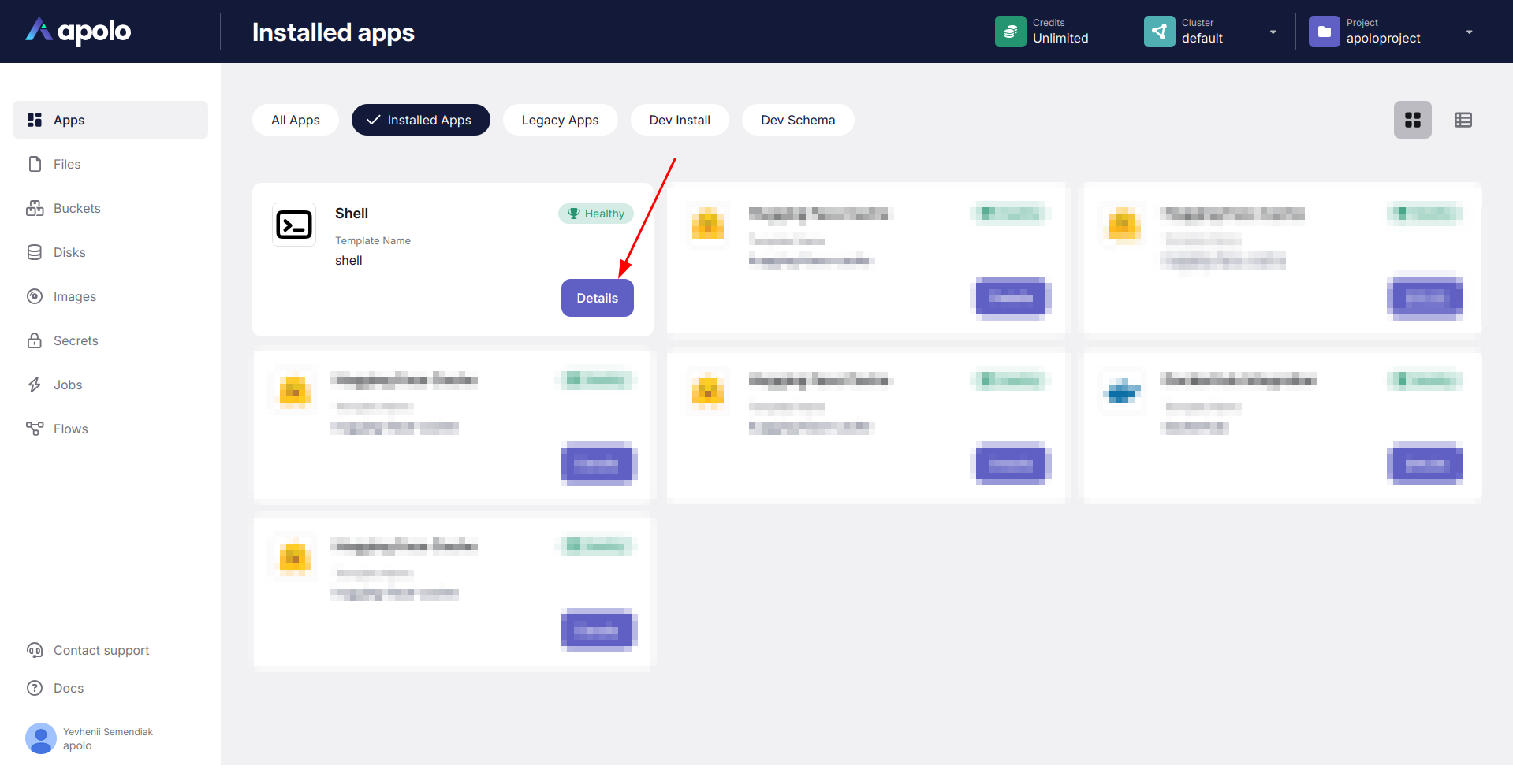
1. Go to the **Installed Apps** tab.
2. You will see a list of running **Shell** app instances. To open the detailed information & uninstall the app, click the **Details** button.
Installed Shell app
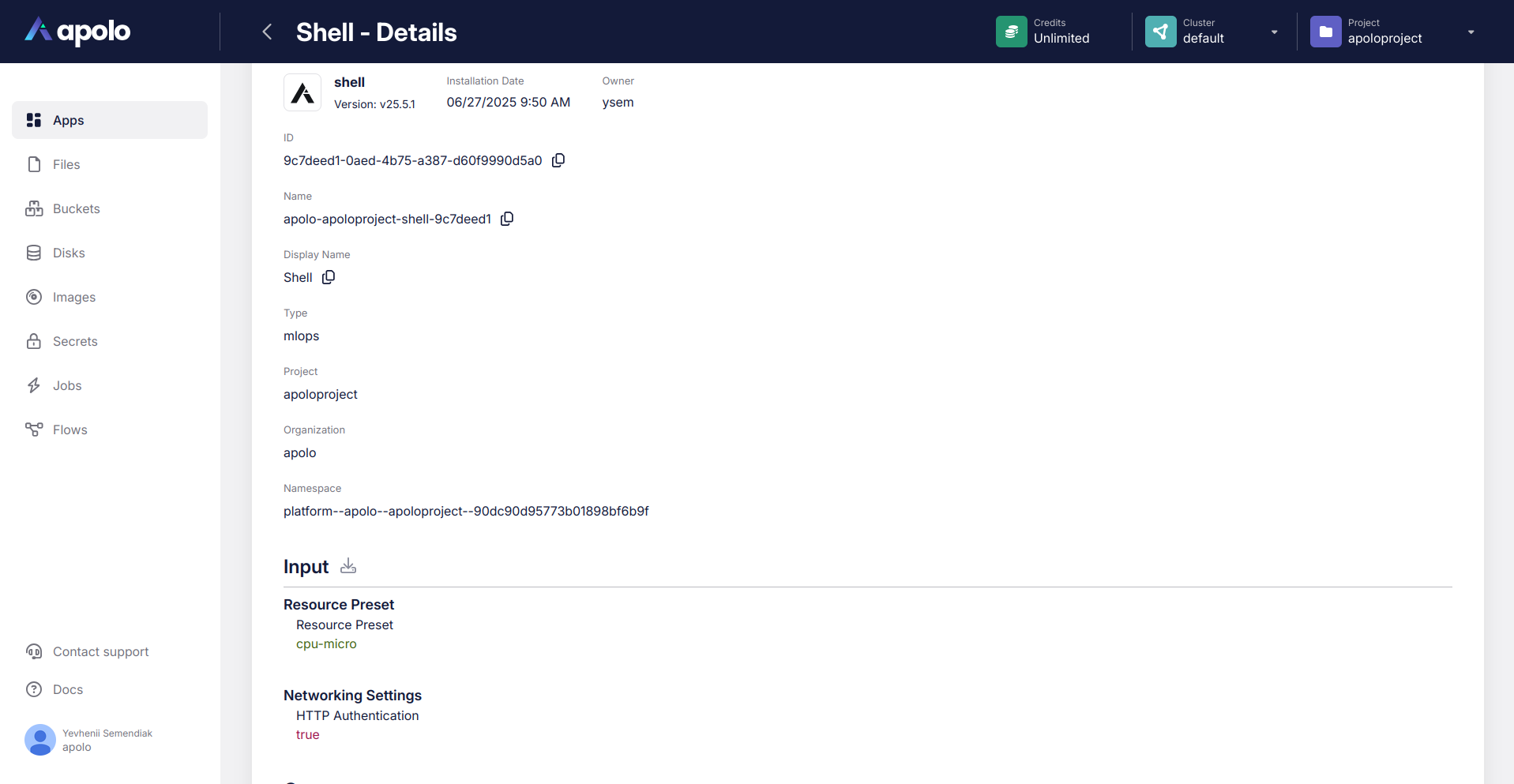
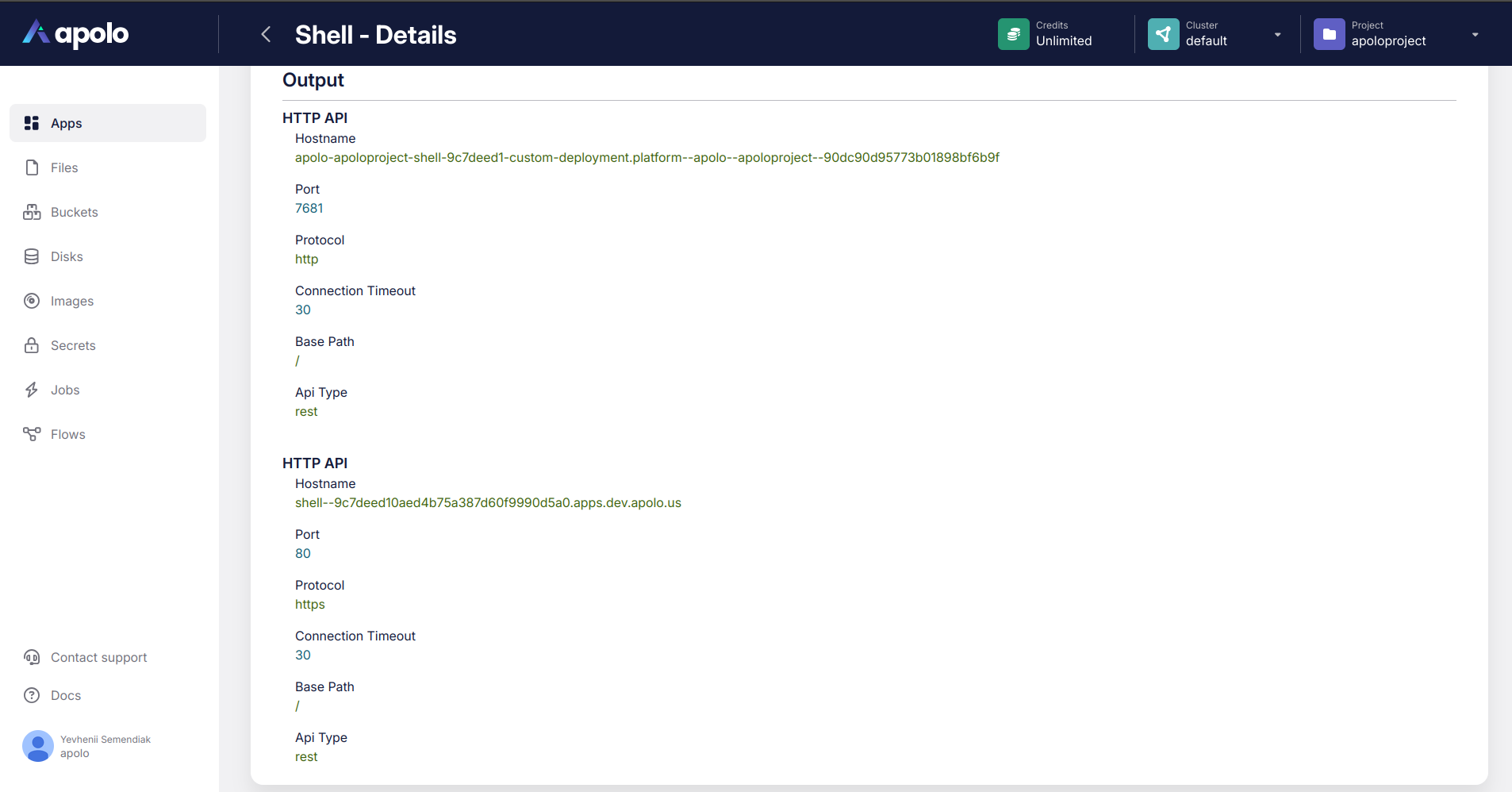
**Details page** contains the next information:
* Application metadata, such as ownership information, date of installation, ID, etc.
* Application status and it's transitions
* Application inputs / settings
* Logs (at the dedicated tab)
* Outputs values
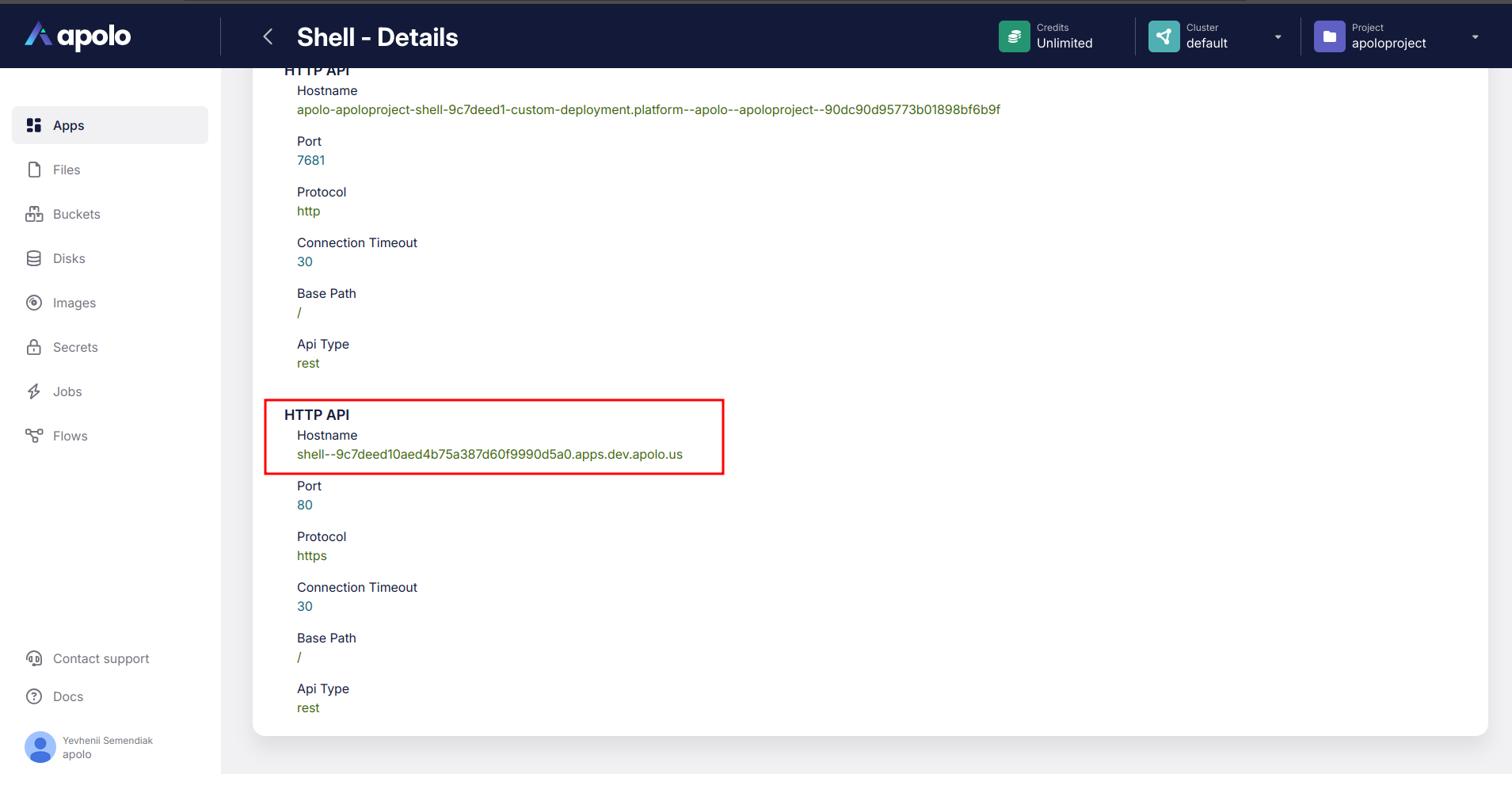
Shell application details (1)
Shell application details (2)
## Using the Terminal App
1. Launch the **Terminal**.
Click the **Open App** button at the top of the app details page to launch the web-based shell environment in a new browser tab.
Shell application domain address
2. Run Commands.\
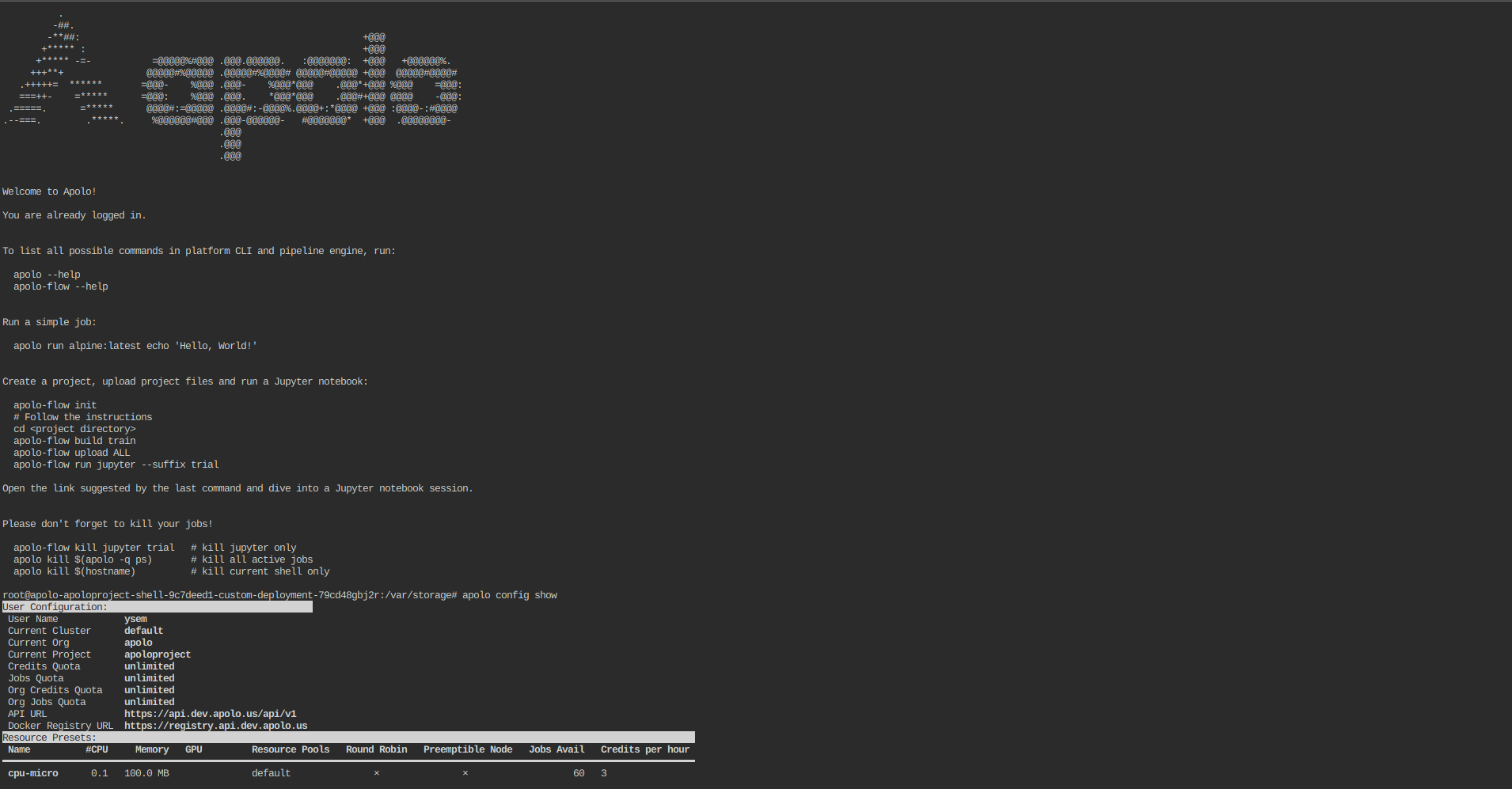
Use the terminal to execute shell commands. A welcome message provides helpful examples of commands you can run, such as managing Apolo CLI workflows and running jobs.
**Example:**