> For the complete documentation index, see [llms.txt](https://docs.apolo.us/index/llms.txt). Markdown versions of documentation pages are available by appending `.md` to page URLs; this page is available as [Markdown](https://docs.apolo.us/index/apolo-concepts-cli/apps/installable-apps/available-apps/launchpad.md).
# Launchpad
## **Overview**
**Launchpad** is an application gateway for the Apolo MLOps platform that enables Apolo users to securely expose platform applications to end-users through customizable authentication powered by Keycloak integration.
With Launchpad, you can share access to applications deployed on Apolo—including pre-built apps like OpenWebUI (a user-friendly interface for interacting with LLMs)—without requiring end-users to have full Apolo accounts. Additionally, Launchpad allows you to deploy custom applications using Apolo's Service Deployment feature and expose them to your users with personalized branding, including custom names, descriptions, and logos. Refer to the [main Launchpad page](/index/apolo-console/apps/installable-apps/available-apps/launchpad.md) for more details.
***
## Installing Launchpad
Launchpad can be installed from the Apolo Console interface or using the Apolo CLI.
Be aware that when choosing the OpenWebUI Quick Start App option, Apolo will also install vLLM, Text Embeddings and Postgresql apps, which will consume credits as well.
### Installation via Apolo CLI
Currently, due to a known bug in the UI, if you choose the OpenWebUI Quick Start App, it's recommended to export the configuration and install it using the Apolo CLI:
1. **In the Launchpad App installation page**, select the **OpenWebUI** Quick Start App and configure your options.
2. Scroll to the bottom and click **Export App Configuration** (download icon).
3. Open your terminal and install the app using the downloaded configuration file:
```bash
apolo app install --file launchpad-custom-app-installation-config.yaml
```
***
## Managing Launchpad and Keycloak Users
To learn more about managing Launchpad users with Keycloak, please refer to the main [Launchpad app documentation](/index/apolo-console/apps/installable-apps/available-apps/launchpad.md#importing-apps-using-the-admin-panel).
***
## Importing Apps
### Importing Apps using the Admin Panel
To learn more about importing apps using the Admin Panel, please refer to the main [Launchpad app documentation](/index/apolo-console/apps/installable-apps/available-apps/launchpad.md#importing-apps-using-the-admin-panel).
### Importing Apps using Admin API
**Obtain an API token**
Use the Launchpad API to get an access token for the `admin` user.
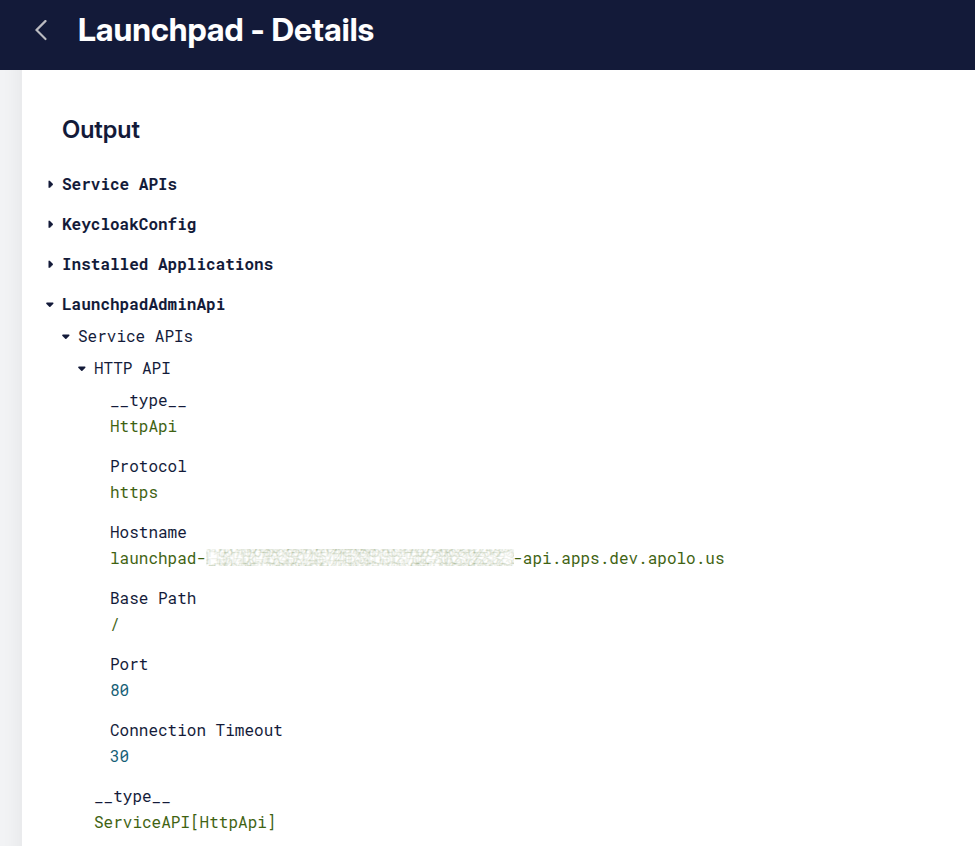
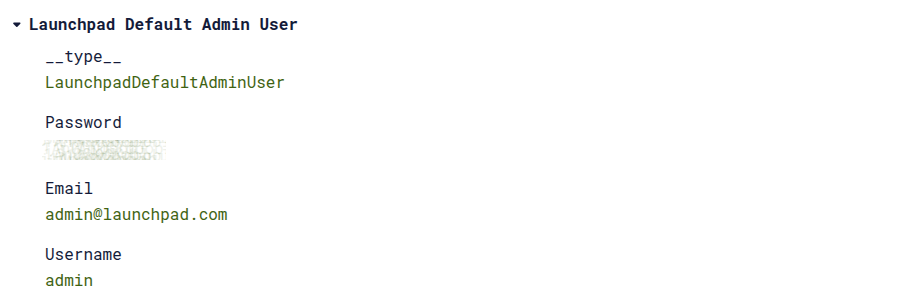
1. Get `LAUNCHPAD_URL` and `LAUNCHPAD_PASSWORD` by going to your Launchpad instance's details page in Apolo and copying the needed values from the Outputs
2. Run the following script in your terminal do obtain the access token. Make sure to replace the needed variable values
```bash
LAUNCHPAD_URL="https://[YOUR_LAUNCHPAD_URL]"
LAUNCHPAD_USERNAME="admin"
LAUNCHPAD_PASSWORD="[YOUR_PASSWORD]"
SCOPE="openid profile email offline_access"
TOKEN_RESPONSE=$(curl -s -X POST "${LAUNCHPAD_URL}/auth/token" \
-H "Content-Type: application/json" \
-d '{"username":"'${LAUNCHPAD_USERNAME}'","password":"'${LAUNCHPAD_PASSWORD}'","scope":"'${SCOPE}'"}')
ACCESS_TOKEN=$(echo "$TOKEN_RESPONSE" | jq -r '.access_token')
```
**Importing a Custom App Template**
You can import a custom app template into Launchpad. This allows you to define configurations and metadata for an application that can be installed later via Launchpad.
1. Obtain a template `json` file by following [this guide](#obtaining-and-preparing-app-templates-for-launchpad). You can edit all the values, except for `template_name` and `template_version`.
2. You can optionally add the extra fields `is_shared` and `is_internal` , like the example bellow.\
\&#xNAN;*Note:* `is_internal: false` ensures the app is visible to end-users.
```json
{
"template_name": "vscode",
"template_version": "v25.10.3",
"name": "vscode-dev",
"verbose_name": "VS Code Development Environment",
"description_short": "Cloud-based VS Code IDE",
"is_internal": false,
"is_shared": false,
"inputs": {
"preset": {
"name": "cpu-medium"
},
"vscode_specific": {
"override_code_storage_mount": null
},
"networking": {
"ingress_http": {
"auth": {
"type": "custom_auth",
"middleware": {
"type": "app-instance-ref",
"instance_id": "",
"path": "$.auth_middleware"
}
}
}
}
}
}
```
3. **Import the Template (via API):**
* Use the Launchpad API `apps/templates/import` endpoint with your template data:
```bash
curl -X POST "${LAUNCHPAD_URL}/api/v1/apps/templates/import" \
-H "Authorization: Bearer $ACCESS_TOKEN" \
-H "Content-Type: application/json" \
-d '[YOUR_TEMPLATE_JSON]'
```
4. **Deploy from Launchpad:**
* The new app template will now be visible in the Launchpad interface, ready for users to install and run their own instance.\
**Importing a Running Application**
In this example, we will import an already running `Service Deployment` app into Launchpad and assign Launchpad authentication.
1. Install a Service Deployment app following [this guide](/index/apolo-console/apps/installable-apps/available-apps/launchpad.md#deploying-a-service-deployment-app-that-uses-launchpad-authentication).
2. **Access App ID:** Once installed, go to the Service Deployment app details and copy its **ID**.
3. **Import App into Launchpad (via API):**
* **Import the Application:** Use the Launchpad API `apps/import` endpoint, replacing placeholders with your app's details and the previously obtained `ACCESS_TOKEN`.
```bash
curl -X POST "${LAUNCHPAD_URL}/api/v1/apps/import" \
-H "Authorization: Bearer $ACCESS_TOKEN" \
-H "Content-Type: application/json" \
-d '{
"app_id": "86441713-dbd1-4d94-ac4c-1b61edc3e2e7",
"name": "custom-app",
"verbose_name": "Custom App",
"description_short": "An externally installed app",
"is_internal": false
}'
```
* *Note:* `is_internal: false` ensures the app is visible to end-users.
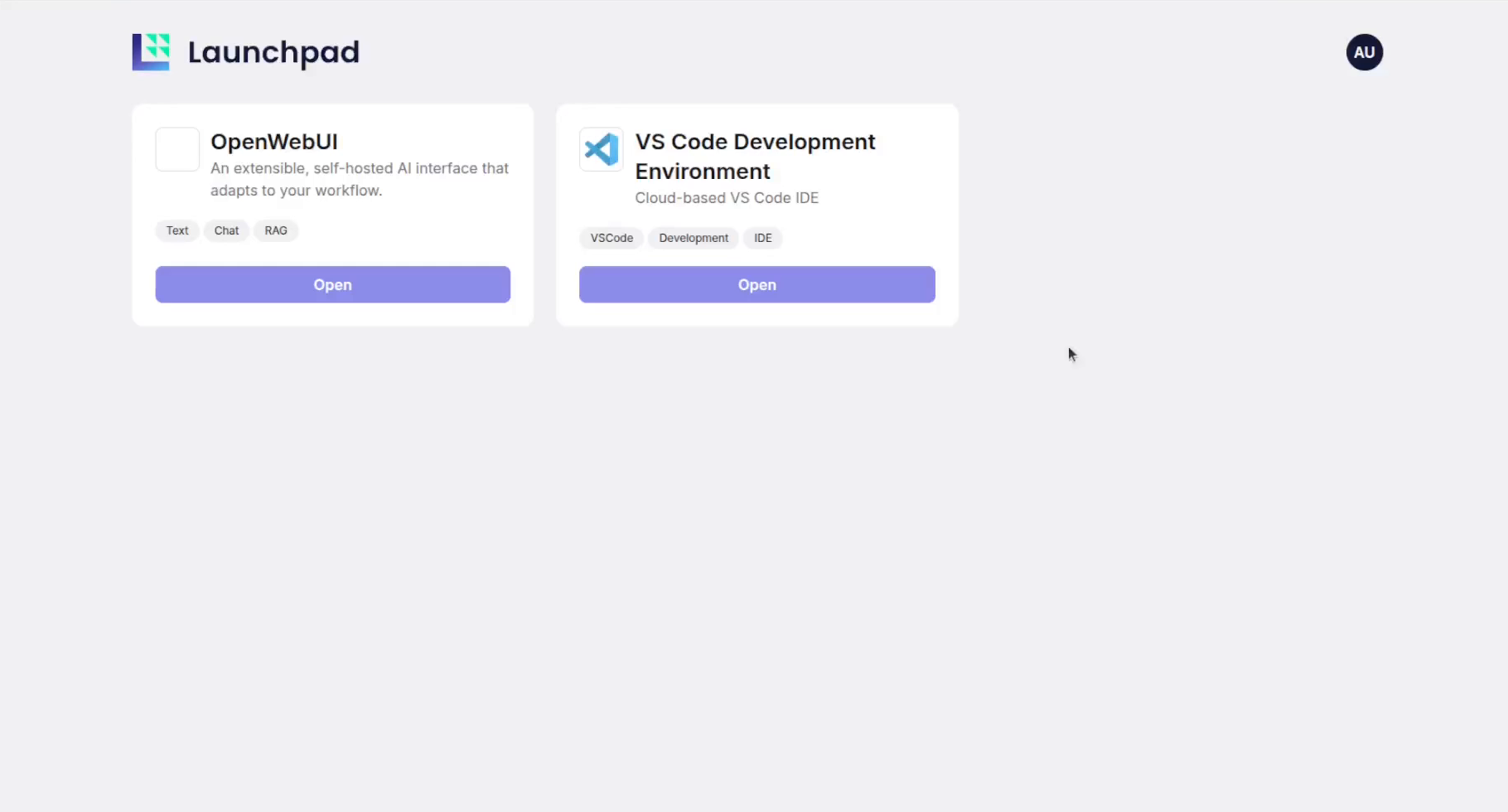
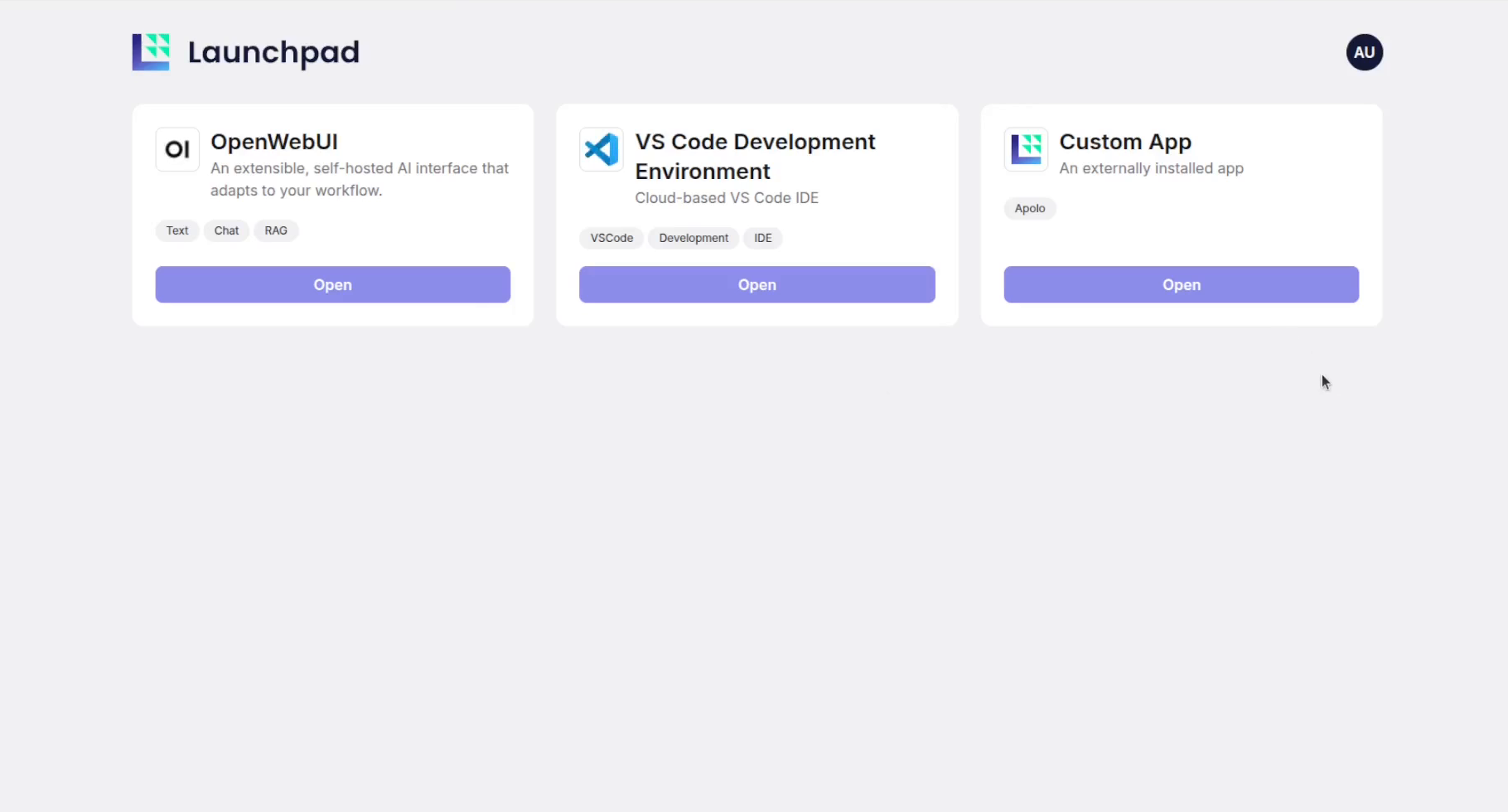
4. **Verify and Access in Launchpad:**
* Go back to the **Launchpad App URL** in your browser.
* The new **Custom App** card should now be displayed, available for external users to access through Keycloak login.\
***
## Summary
The Launchpad app transforms the Apolo MLOps platform into a user-friendly deployment environment, simplifying application access and user authentication for internal and external users via Keycloak integration. By enabling the import of custom app templates and existing app instances, Launchpad offers a versatile solution for showcasing and managing applications within your ecosystem.
## References
* [Detailed Launchpad description](/index/apolo-console/apps/installable-apps/available-apps/launchpad.md)
* [Keycloak documentation](https://www.keycloak.org/documentation)
* [OpenWebUI app documentation](/index/apolo-console/apps/installable-apps/available-apps/openwebui.md)
* [Managing Apps](/index/apolo-concepts-cli/apps.md)