# Dify

## Overview

Dify is an open-source development platform for building, managing, and deploying applications powered by large language models (LLMs). It offers an intuitive interface that integrates key features such as AI workflows, Retrieval-Augmented Generation (RAG) pipelines, agent-based capabilities, model management, and observability tools — all designed to help users move quickly from prototyping to production

### Key Features

* **AI Workflow Management:** Streamlines the end-to-end development process for LLM apps.
* **RAG Pipelines and Agent Capabilities:** Supports Retrieval-Augmented Generation and agent functionality to handle complex data queries and automate tasks.
* **Model Management:** Enables efficient model management for various LLM deployments.
* **Observability:** Provides tools to monitor and improve app performance in real time.

### Integrations

On the Apolo platform, **Dify** might be integrate enhanced with:

1. **PostgreSQL with PGVector** application for scalable, low-latency semantic data retrieval
2. **Apolo Buckets** to store binary objects (datasets) that users upload to the platform
3. **vLLM** application (streaming & non‑streaming completions). This integration should be performed manually
4. **Text embeddings / vLLM** serving embeddings model for document/context processing

This design allows users to upload documents, build production-grade ingestion pipelines and create chat applications on top of them. All of this done with zero data leakage — all assets are securely stored within users Apolo tenant.

## Installing

In this guide, we presume you've already deployed [vLLM Inference](https://docs.apolo.us/index/apolo-console/apps/installable-apps/available-apps/llm-inference), [Text embeddings](https://docs.apolo.us/index/apolo-console/apps/installable-apps/available-apps/text-embeddings-inference) and [PostgreSQL](https://docs.apolo.us/index/apolo-console/apps/installable-apps/available-apps/postgre-sql) applications, since we are going to show the integration process with those apps. The overview of application installation process via web console could be found [here](https://docs.apolo.us/index/apolo-console/apps/installable-apps/managing-apps).

Below are the detailed instructions for installing Dify application using Apolo Console. For instructions on how to install it using Apolo CLI, visit the [dedicated page](https://docs.apolo.us/index/apolo-concepts-cli/apps/installable-apps/available-apps/dify).

{% stepper %}
{% step %}

#### Select "Dify" application at Apolo web console

Access the Apolo web console and go to the "Apps" section. We presume you are already authorized in web console and a participant of organization and project.
{% endstep %}

{% step %}

#### Configure application

**HTTP Ingress, authentication and authorization**: allows you to enable or disable public domain creation for application and Apolo-powered HTTP authorization for the application API and web UI public domain.

We enable ingress, but disable authentication and authorization since Dify has it's own AAA mechanisms.

***Dify API***

This component under the hood coordinates communication among other application components and serves user's requests. It does not perform heavy compute by itself.

**Replicas count:** controls number of underlying replicas for the API. If you expect the load to be significant, deploy more than one instances.

We select a single replica here.

**Resource preset:** Here you select an appropriate preset that specifies CPU, memory. Since API does not do any compute, the preset with 1 vCPU and 2 GiB of RAM should be sufficient to serve our needs.

For our use-case we use `cpu-medium` with exactly those numbers.

***Dify worker***

This component under the hood runs async data analysis tasks, processes datasets and stores the results in the configured storages, etc. It does not serve LLMs itself, however the amount of workers and their resources impact speed with which your datasets gets processed.

**Replicas count:** controls number of underlying workers to deploy. This also depends on the amount of data you as a user is going to upload for processing

We select a single replica here.

**Resource preset:** Here you select an appropriate preset that specifies CPU, memory. This application under the hood communicates with external services such as vLLM and text embeddings API to process datasets. It also does not perform heavy compute by itself, so the preset with 1 vCPU and 2 GiB of RAM should be sufficient to serve your needs.

For our use-case we use `cpu-medium` with exactly those numbers.

***Dify proxy***

This component stands between API + Web services and the end user. Under the hood it's a simple Nginx reverse proxy. The smallest preset and a single replica should be fine here.

***Dify web***

This is the web UI application server without heavy compute footprint. The preset with \~ 1vCPU and 2 GiB of RAM is required.

***Dify Redis***

This is stand-alone cache service used while processing datasets and while serving some user requests. Currently, it's embedded into the Dify app, while in future it will be extracted to the dedicated application. Select similar to API resource preset here.

***PostgreSQL integration***

Dify uses PostgreSQL to store documents, their embeddings and metadata for later retrieval in chat. It also serves as a metrics storage and users metadata storage for Dify platform. In the opened window select PostgreSQL credentials from previously installed in Apolo PostgreSQL application.

When integrating with PostgreSQL app, make sure you are not using `postgres` user, this will not work due to security reasons.

You can select the same user credentials for both cases: first Postgres User Credentials is used to store metadata and users information, while the second one is used to store embeddings using PGVector extension.

You can also configure access to the PostgreSQL instance managed by you, among requirements: user should be able to connect, create tables in own or public schema for the specified database. PGVector add-on should also be pre-installed in the database.
{% endstep %}

{% step %}
**Installation**

When all of the required parameters are provided, click "install" to start the installation process. You will be redirected to the application details page, where app status, inputs and outputs are displayed. Wait till the status is *healty*.

Once the app is installed:

1. Click the **Open App** button at the top of the app details page to launch the Dify web UI in a new browser tab.
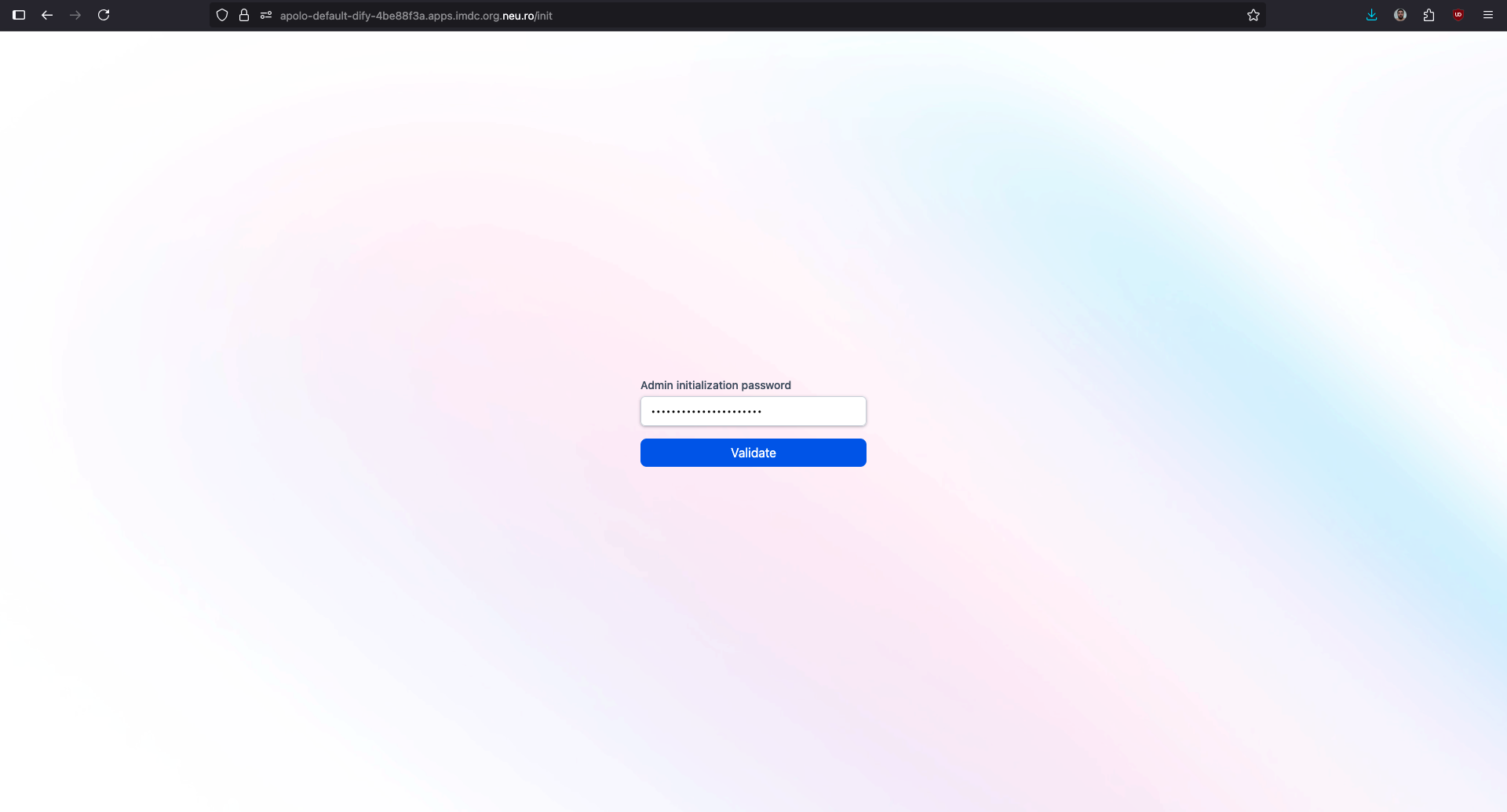
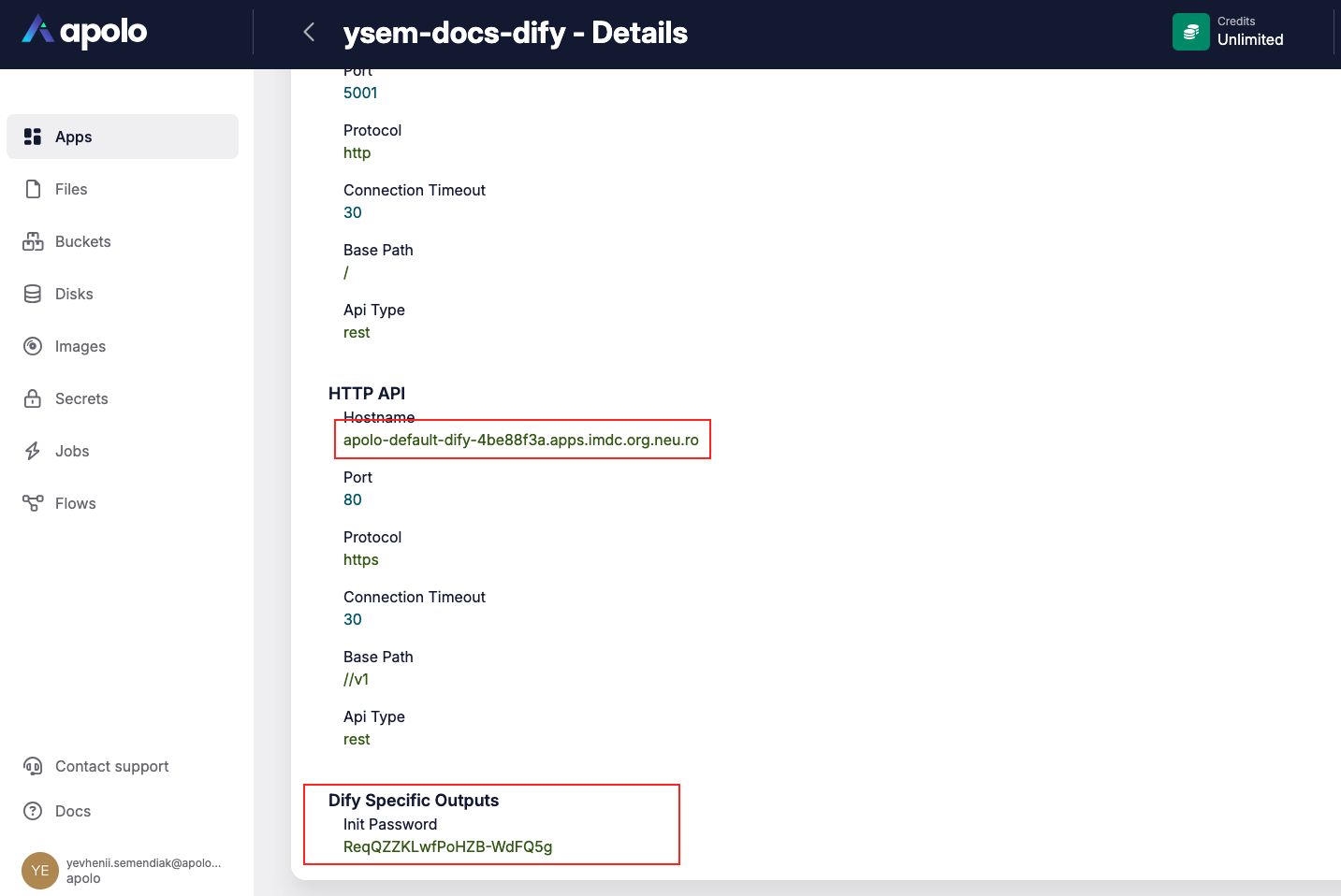
2. Find the init password in the Outputs section (scroll down on the app details page) - you'll need this to create the first root user.

{% tabs %}
{% tab title="Dify init password" %}

<figure><img src="https://3952707095-files.gitbook.io/~/files/v0/b/gitbook-x-prod.appspot.com/o/spaces%2FUD8kiAsnN8MKP7nzsJRQ%2Fuploads%2Fgit-blob-fd0bcf8cabf3f90a5154aea426d8dc51105495d8%2Fimage.png?alt=media" alt=""><figcaption><p>Dify init password in Outputs section</p></figcaption></figure>
{% endtab %}

{% tab title="Dify self-signup" %}

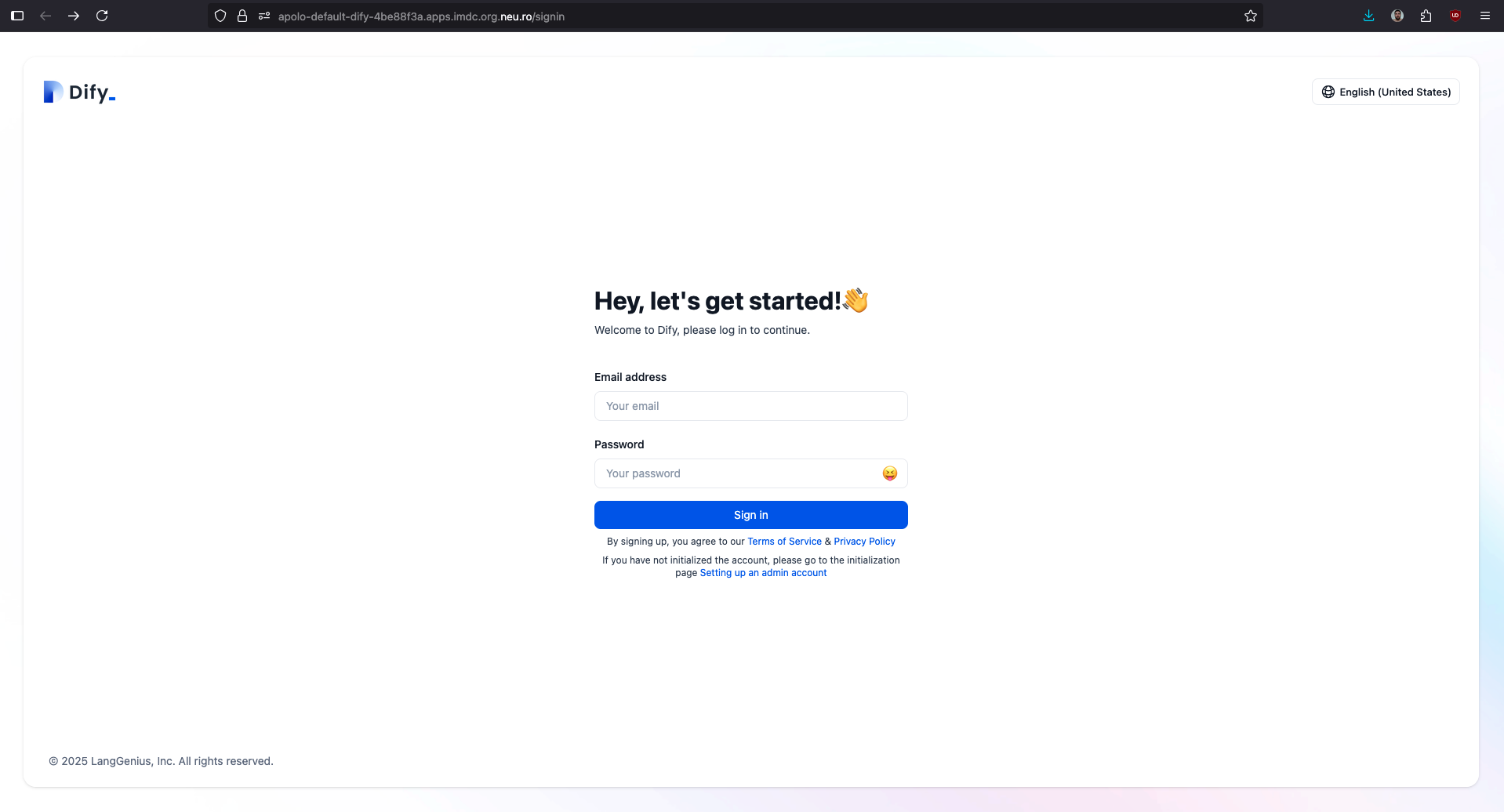
<figure><img src="https://3952707095-files.gitbook.io/~/files/v0/b/gitbook-x-prod.appspot.com/o/spaces%2FUD8kiAsnN8MKP7nzsJRQ%2Fuploads%2Fgit-blob-7f3578459de63a7868773dd4bfc86096f6985222%2Fimage.png?alt=media" alt=""><figcaption><p>Sign-up (you can skip it, info will be ignored)</p></figcaption></figure>

<figure><img src="https://3952707095-files.gitbook.io/~/files/v0/b/gitbook-x-prod.appspot.com/o/spaces%2FUD8kiAsnN8MKP7nzsJRQ%2Fuploads%2Fgit-blob-7baee0e9b18d19244fa1b20f34cc1cf420fe680f%2Fimage.png?alt=media" alt=""><figcaption><p>Init password (from outputs)</p></figcaption></figure>

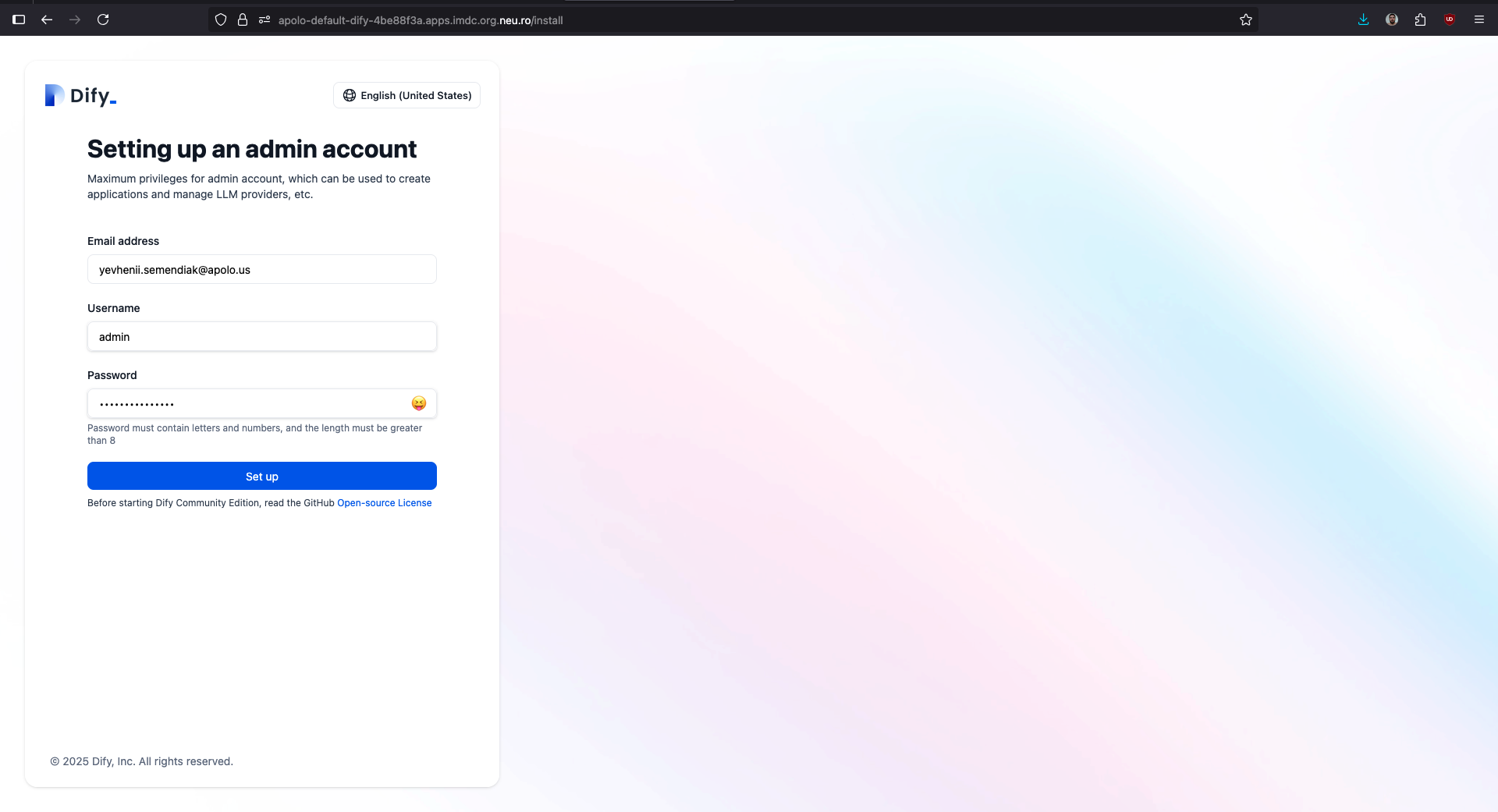
<figure><img src="https://3952707095-files.gitbook.io/~/files/v0/b/gitbook-x-prod.appspot.com/o/spaces%2FUD8kiAsnN8MKP7nzsJRQ%2Fuploads%2Fgit-blob-eed723ec1bd549ac949ac48e33bb90fde911f3b3%2FScreenshot%202025-07-08%20at%2015.41.54.png?alt=media" alt=""><figcaption><p>Creating admin user</p></figcaption></figure>
{% endtab %}
{% endtabs %}
{% endstep %}

{% step %}

#### Integrating vLLM and Text embedding

{% tabs %}
{% tab title="About" %}
As for now, Dify does not allow programmatic configuration of LLM / embedding endpoints, therefore, users are obliged to add those configurations.

Follow the instructions on each tab in order to integrate vLLM and text embedding applications into the Dify.
{% endtab %}

{% tab title="vLLM integration" %}
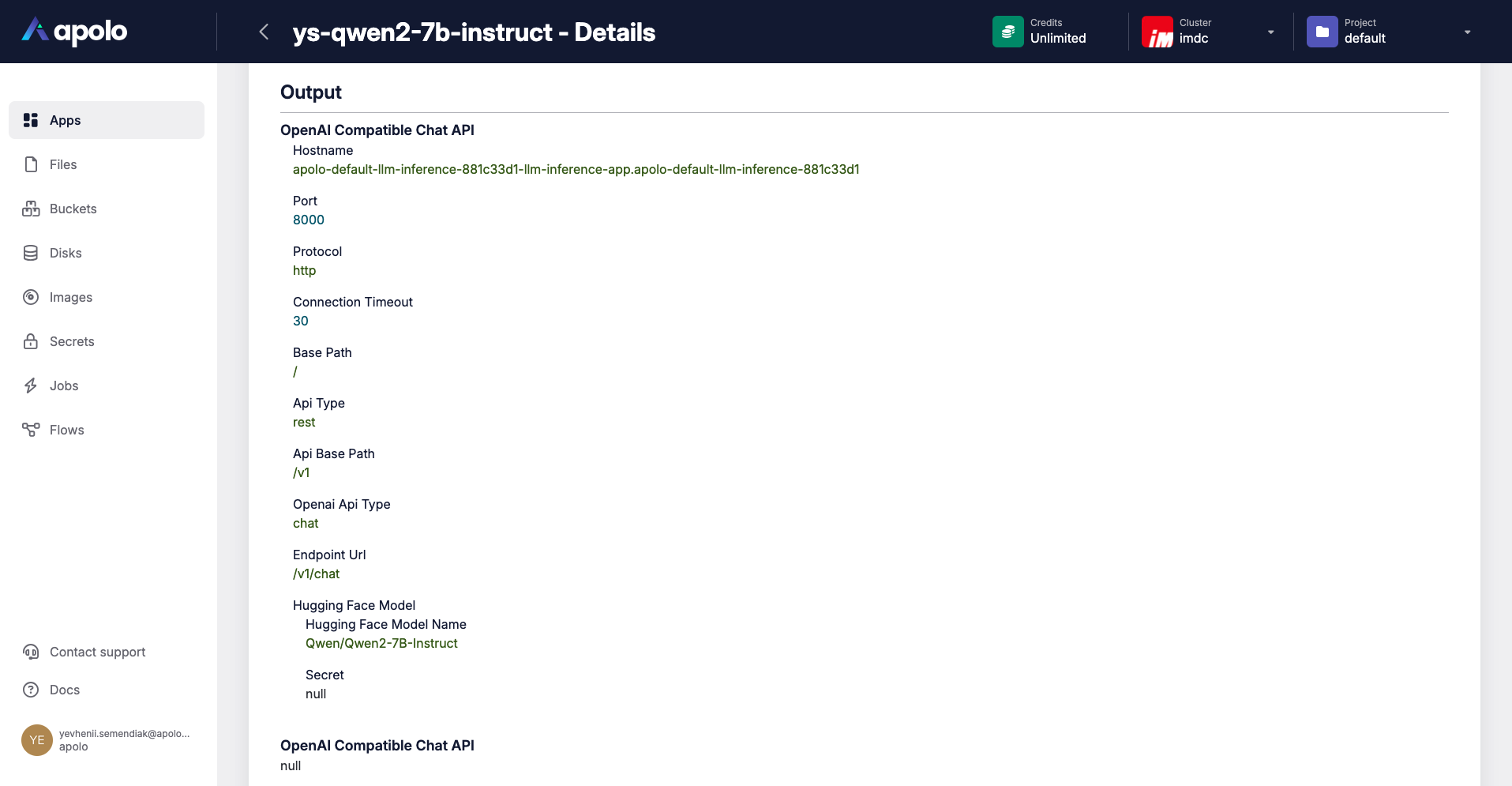
Assuming vLLM app was deployed to serve Qwen2-7B-Instruct has the following outputs:

<figure><img src="https://3952707095-files.gitbook.io/~/files/v0/b/gitbook-x-prod.appspot.com/o/spaces%2FUD8kiAsnN8MKP7nzsJRQ%2Fuploads%2Fgit-blob-66e4c9f82d5bfa916ef00fbcbfb24f30c2e8e6e8%2Fimage.png?alt=media" alt="" width="563"><figcaption><p>vLLM outputs</p></figcaption></figure>

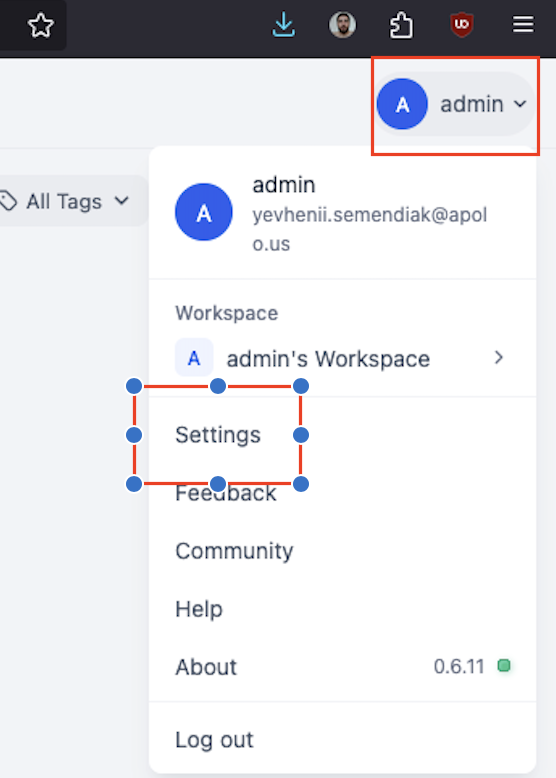
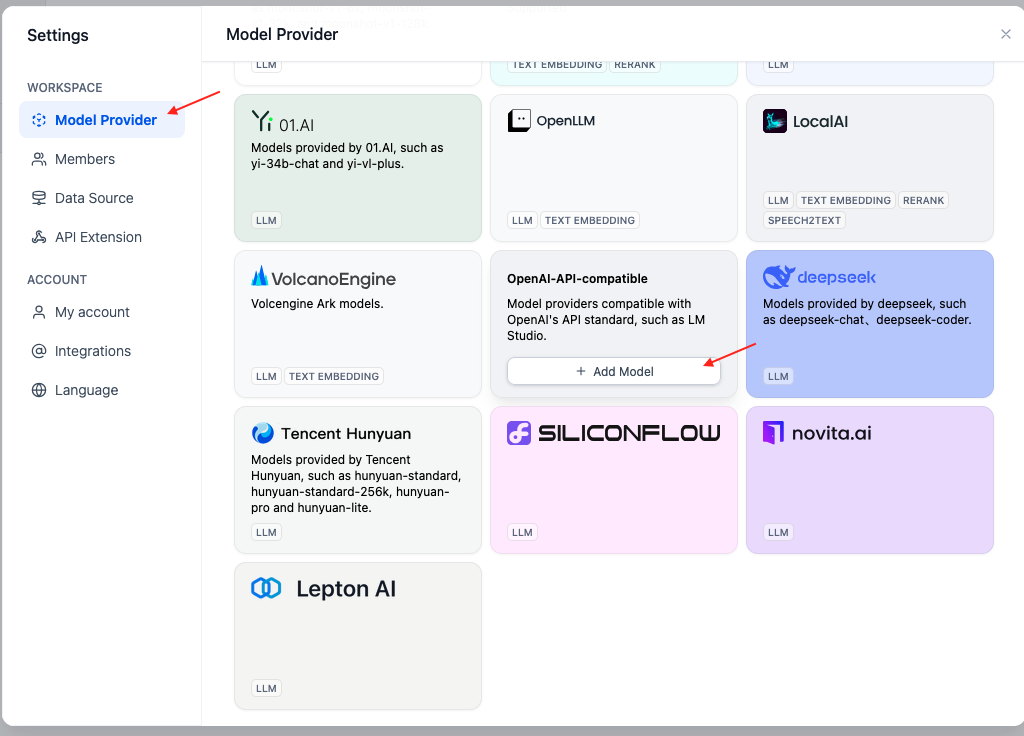
In order to integrate this application, open settings window -> Model provider and find OpenAI-API-compatible, click "add model"

<div align="center"><figure><img src="https://3952707095-files.gitbook.io/~/files/v0/b/gitbook-x-prod.appspot.com/o/spaces%2FUD8kiAsnN8MKP7nzsJRQ%2Fuploads%2Fgit-blob-a8fa0cbf07b136ab57bec1ad7ecc75101d4138d0%2Fimage.png?alt=media" alt="" width="278"><figcaption><p>Navigating to settings window</p></figcaption></figure></div>

<figure><img src="https://3952707095-files.gitbook.io/~/files/v0/b/gitbook-x-prod.appspot.com/o/spaces%2FUD8kiAsnN8MKP7nzsJRQ%2Fuploads%2Fgit-blob-b3bb57a13828487a61e5c08c10f37e4854cd32bb%2Fimage.png?alt=media" alt="" width="375"><figcaption><p>Adding OpenAI-API-compatible integration</p></figcaption></figure>

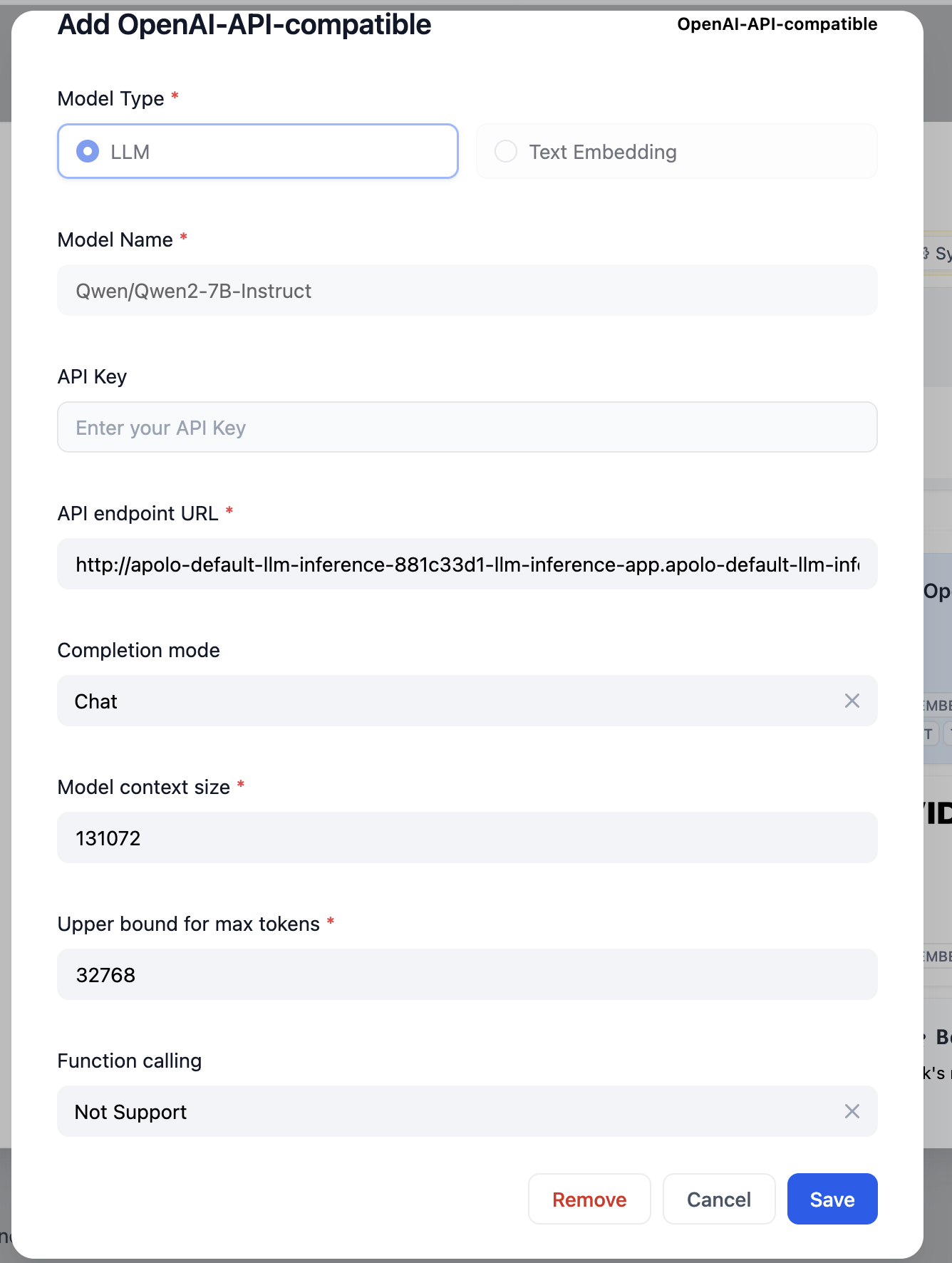
Now enter the information from vLLM application outputs:

<figure><img src="https://3952707095-files.gitbook.io/~/files/v0/b/gitbook-x-prod.appspot.com/o/spaces%2FUD8kiAsnN8MKP7nzsJRQ%2Fuploads%2Fgit-blob-e0fb537543dca1adb07aefa56a1d869e2fcc969a%2FScreenshot%202025-07-08%20at%2017.50.14.png?alt=media" alt="" width="375"><figcaption><p>Dify vLLM integration</p></figcaption></figure>

*Note: If you are using inter-cluster endpoint for vLLM communication, do not forget to specify scheme, port and base path, e.g. `http://<hostname>:8000/v1`*

Click *save.* Now having this model added to the system, you can select it to be the default reasoning model.
{% endtab %}

{% tab title="Text Embedding integration" %}
Here we describe how to integrate Text Embedding Inference application into the Dify. This application will carry out the load of processing user queries and documents for later retrieval.

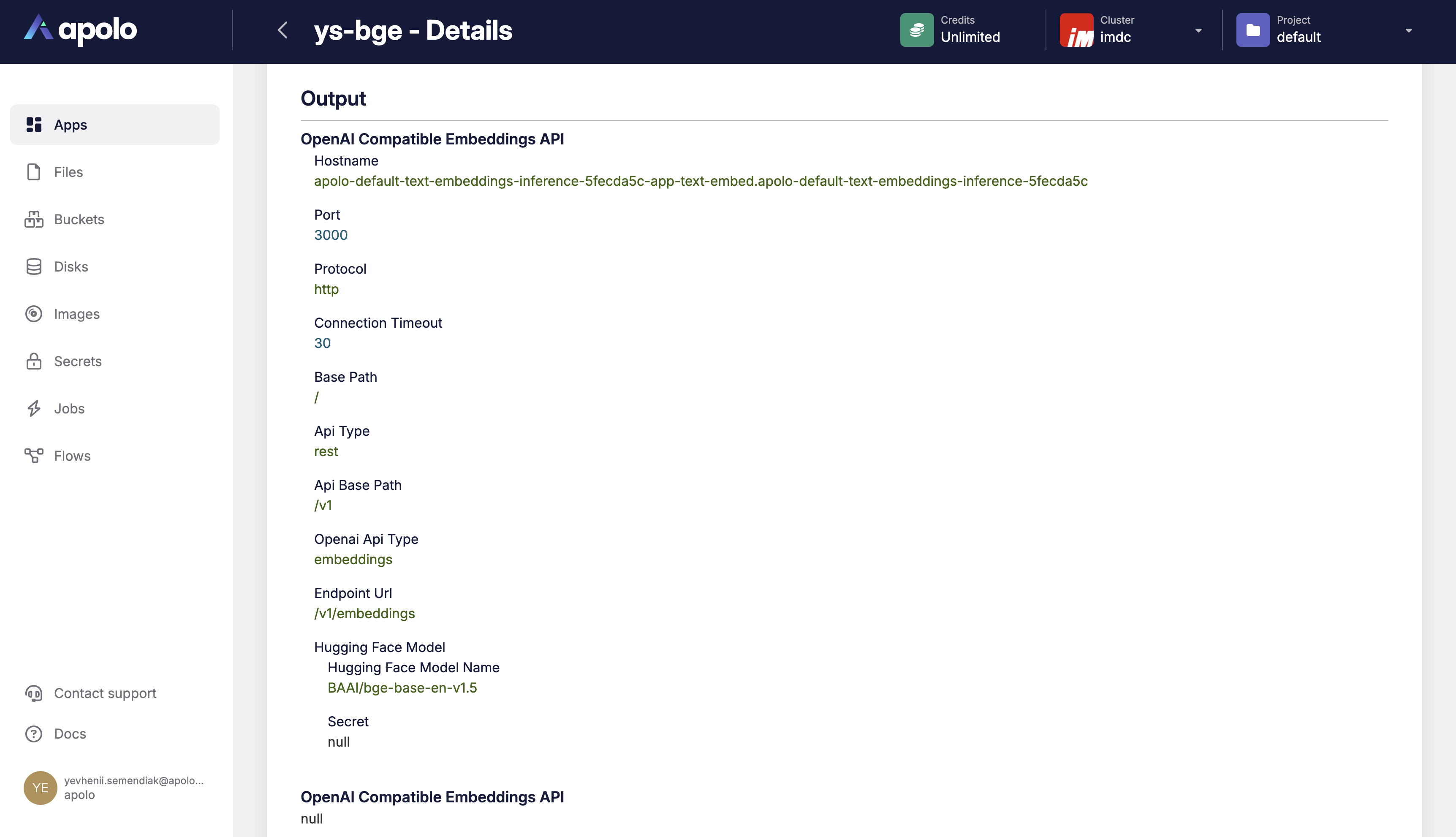
Assuming, you have Text Embedding app installed that have following outputs:

<figure><img src="https://3952707095-files.gitbook.io/~/files/v0/b/gitbook-x-prod.appspot.com/o/spaces%2FUD8kiAsnN8MKP7nzsJRQ%2Fuploads%2Fgit-blob-670c7edfab91d5667bf860804fe68f76197318bc%2Fimage.png?alt=media" alt="" width="563"><figcaption><p>Text Embeddings application outputs</p></figcaption></figure>

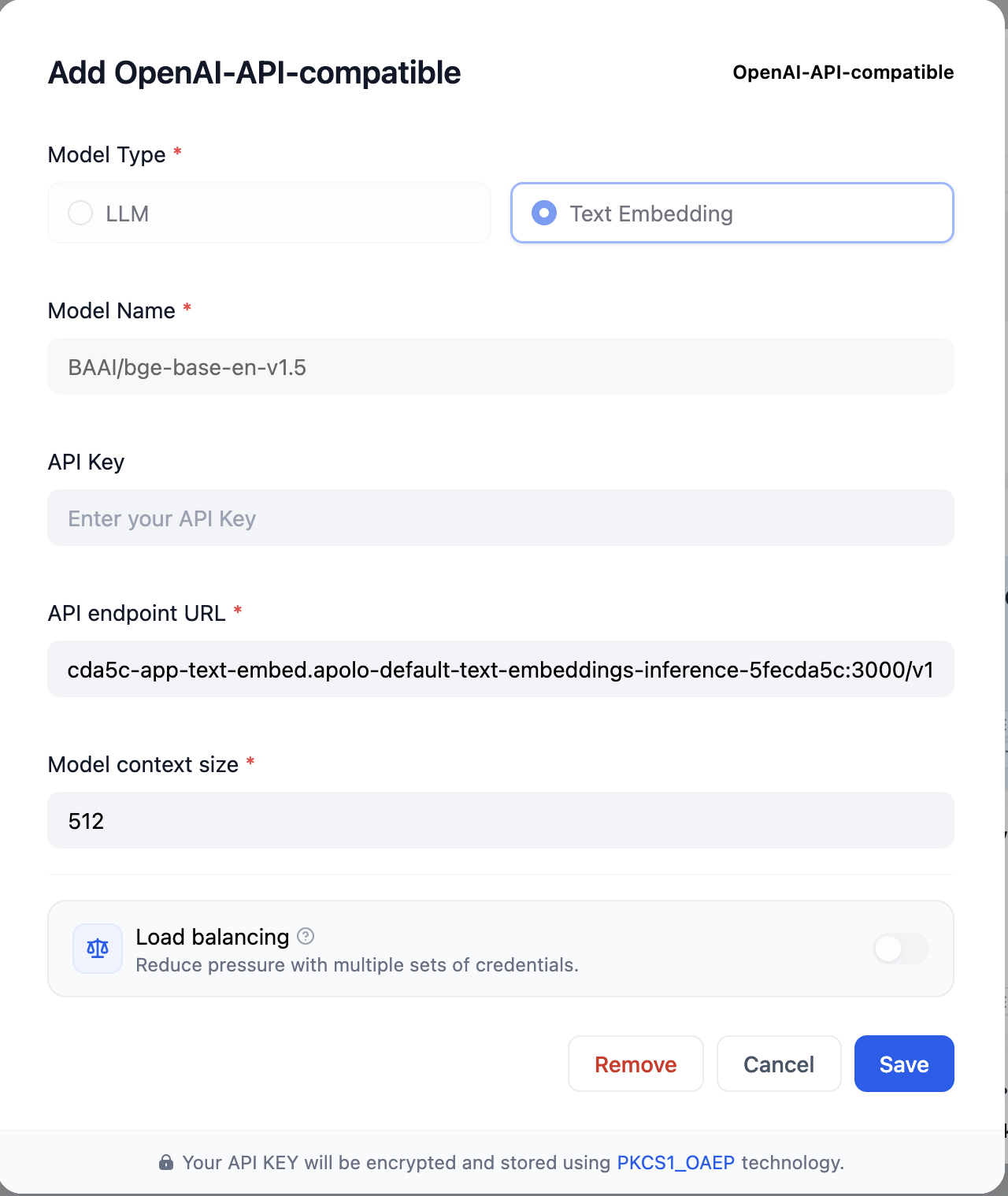
As with vLLM integration, open Dify settings window -> Model provider and find OpenAI-API-compatible. Click "add model", select embedding model type and provide the inputs in the same guide

<figure><img src="https://3952707095-files.gitbook.io/~/files/v0/b/gitbook-x-prod.appspot.com/o/spaces%2FUD8kiAsnN8MKP7nzsJRQ%2Fuploads%2Fgit-blob-1fb1348f6fc80c1fe58d31111df7503889231d46%2Fimage.png?alt=media" alt="" width="375"><figcaption><p>Embeddings model configuration in Dify</p></figcaption></figure>

Now you can click "save" and the model configuration will be saved.
{% endtab %}

{% tab title="Default models" %}
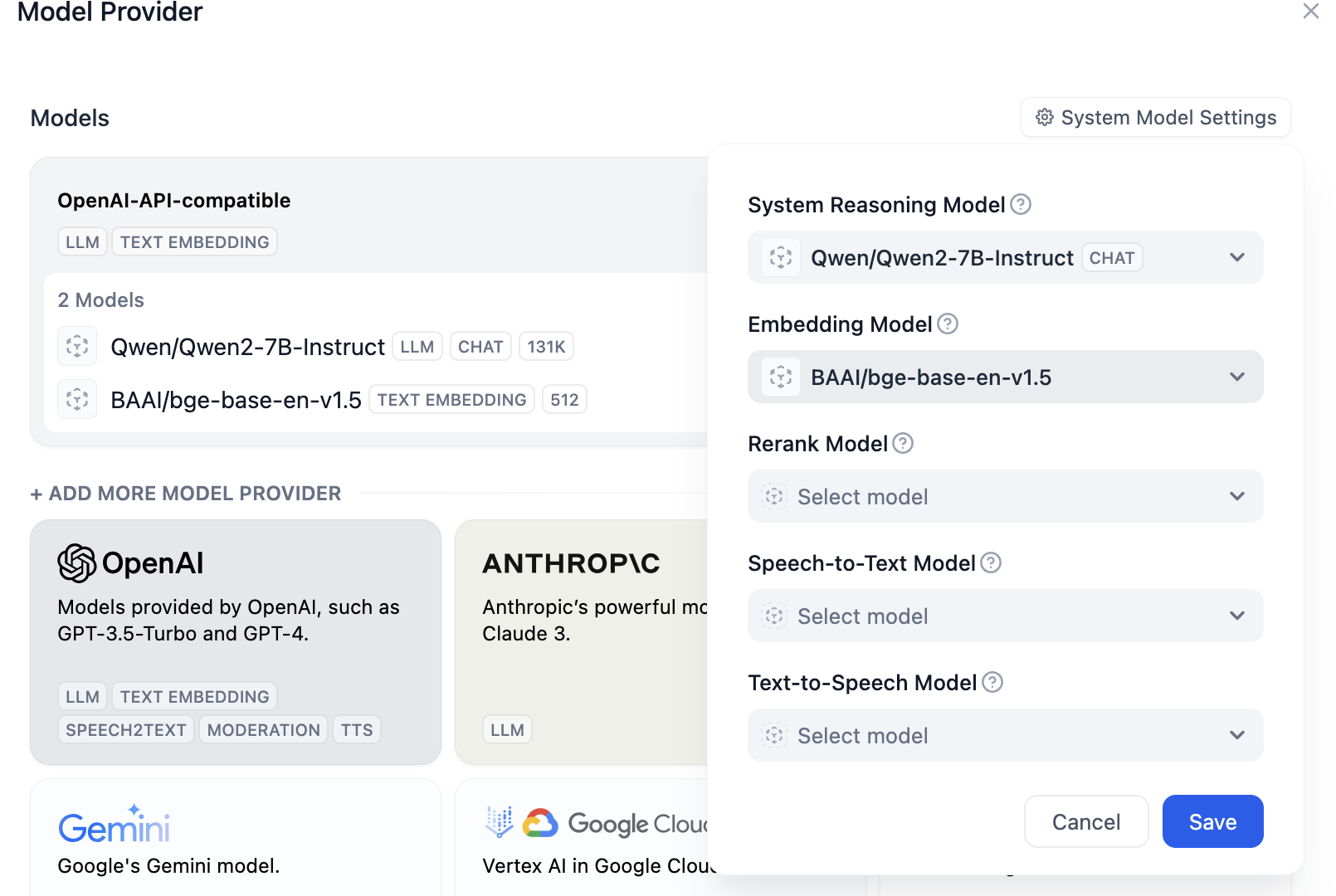
Now, select previously added models as system defaults for reasoning and embedding.

<figure><img src="https://3952707095-files.gitbook.io/~/files/v0/b/gitbook-x-prod.appspot.com/o/spaces%2FUD8kiAsnN8MKP7nzsJRQ%2Fuploads%2Fgit-blob-daa01d1f415d03950129178acae9dda434bb8145%2Fimage.png?alt=media" alt="" width="563"><figcaption><p>Configuring system default models</p></figcaption></figure>

Hit *save* button.
{% endtab %}
{% endtabs %}

After adding vLLM and Text embedding providers to Dify, the system will be ready to create and run your applications
{% endstep %}
{% endstepper %}

## Usage

### Creating sample RAG application

1. **Creating the app**

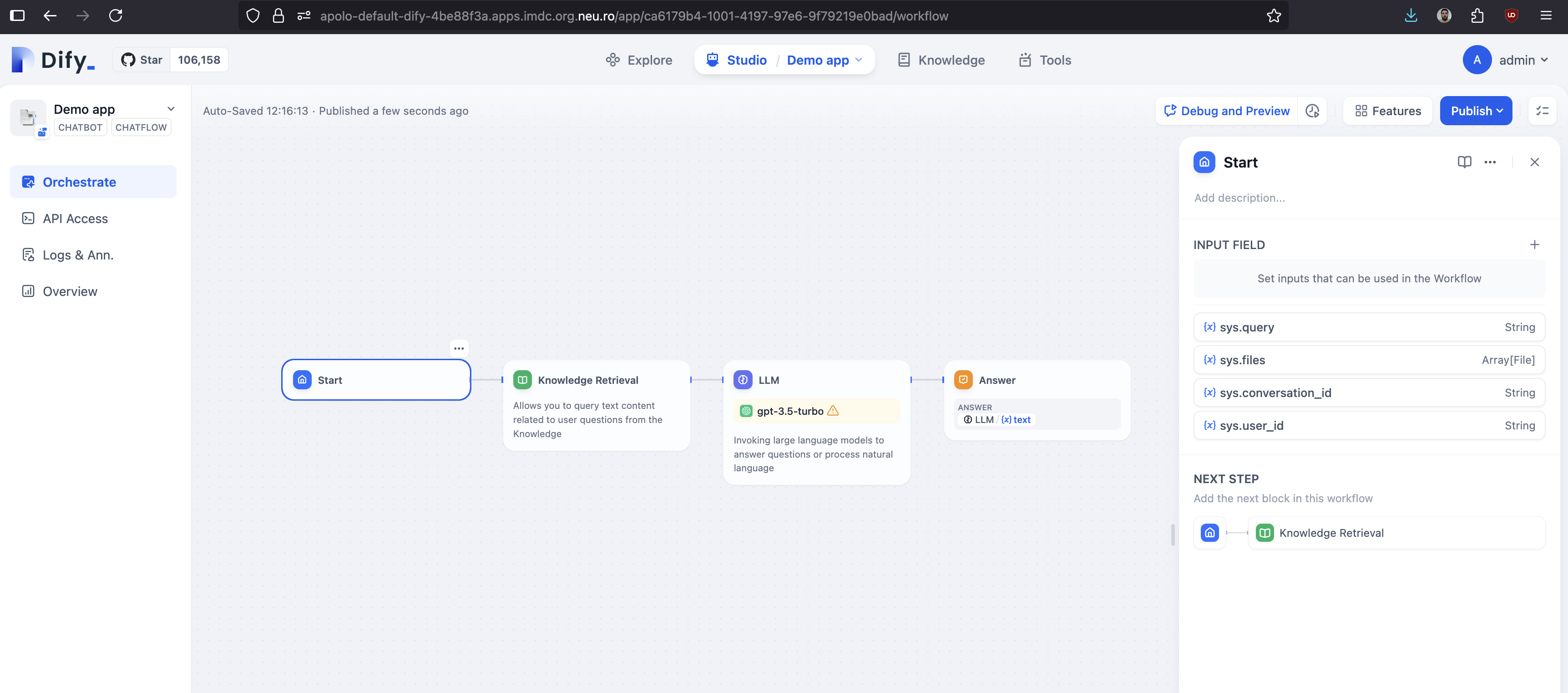
   In the Dify studio (landing page of Dify platform), click "Create from template" and select *Knowledge Retreival + Chatbot* template.

   Name your app and hit "Create". This will create a basic flow for your application:

<figure><img src="https://3952707095-files.gitbook.io/~/files/v0/b/gitbook-x-prod.appspot.com/o/spaces%2FUD8kiAsnN8MKP7nzsJRQ%2Fuploads%2Fgit-blob-1f557d69add9204afe0fd724472cd2688c2ef407%2FScreenshot%202025-07-08%20at%2019.16.15.png?alt=media" alt=""><figcaption><p>Dify application flow</p></figcaption></figure>

2. **Setup knowledge**

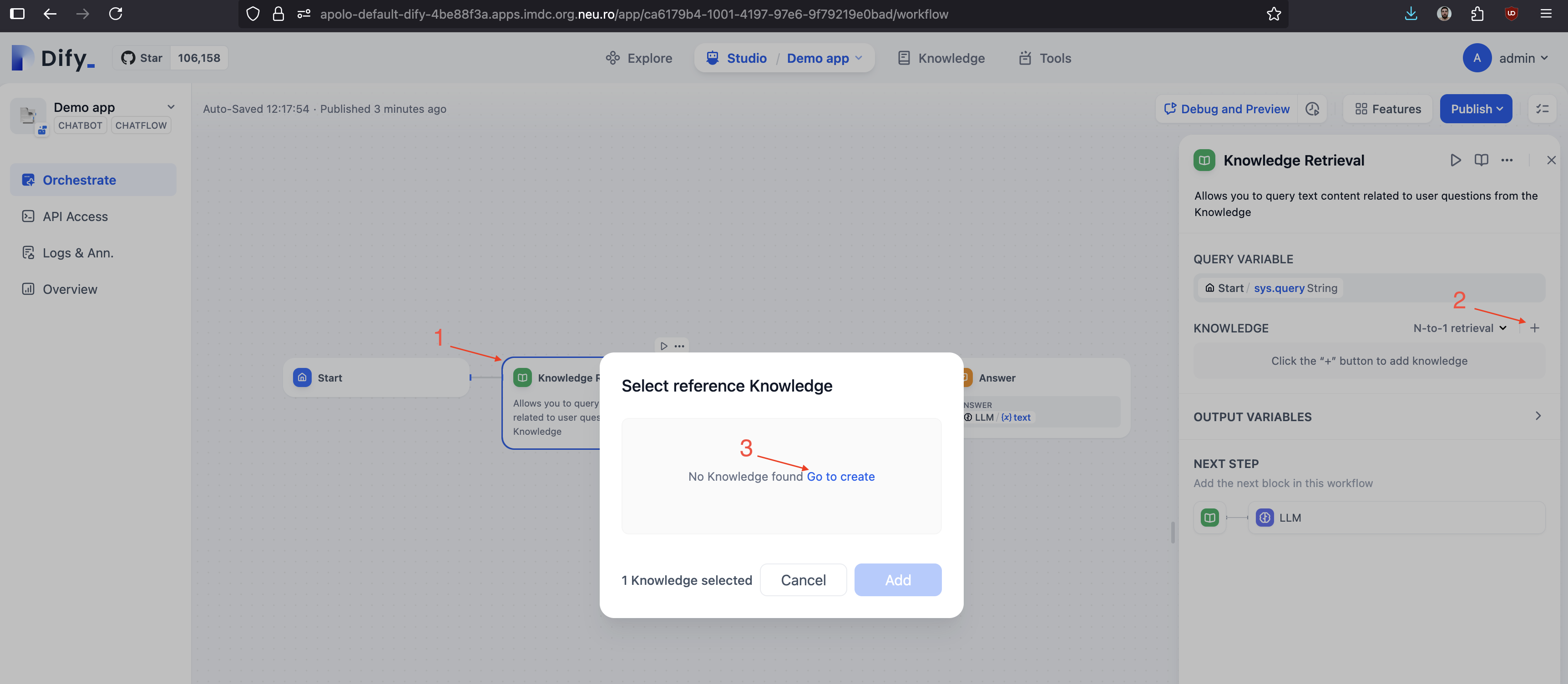
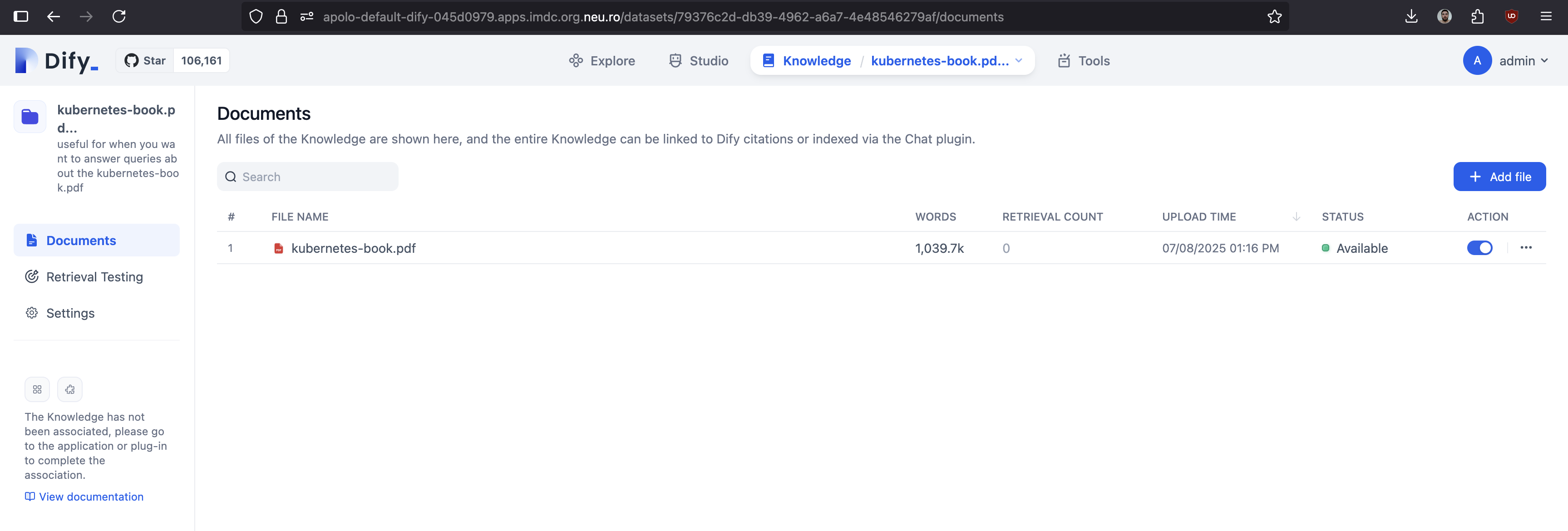
   Select knowledge retrieval block (1), click on "+" sign on the Knowledge context menu (2) and navigate to the Knowledge creation page (3).

   <figure><img src="https://3952707095-files.gitbook.io/~/files/v0/b/gitbook-x-prod.appspot.com/o/spaces%2FUD8kiAsnN8MKP7nzsJRQ%2Fuploads%2Fgit-blob-d558b64244943d11b9e980bab5e4283788eca60f%2Fimage.png?alt=media" alt=""><figcaption><p>Creating a knowledge</p></figcaption></figure>

   The Knowledge in the Dify platform is a collection of correlated data. More information could be fond in [Dify documentation](https://docs.dify.ai/en/guides/knowledge-base/readme). We will not explain the knowledge creation in details, instead we create a Knowledge based on Kubernetes book, by uploading the book via web UI, selecting the default embedding model to process the data. This processing might take some time.

   When done, you will see the processed dataset item and the approximate number of words in it:

   <figure><img src="https://3952707095-files.gitbook.io/~/files/v0/b/gitbook-x-prod.appspot.com/o/spaces%2FUD8kiAsnN8MKP7nzsJRQ%2Fuploads%2Fgit-blob-f25ad8a71a16ef54d277b84be16b8a30c1d0bbd9%2FScreenshot%202025-07-08%20at%2020.17.16.png?alt=media" alt=""><figcaption><p>Dify processed knowledge</p></figcaption></figure>
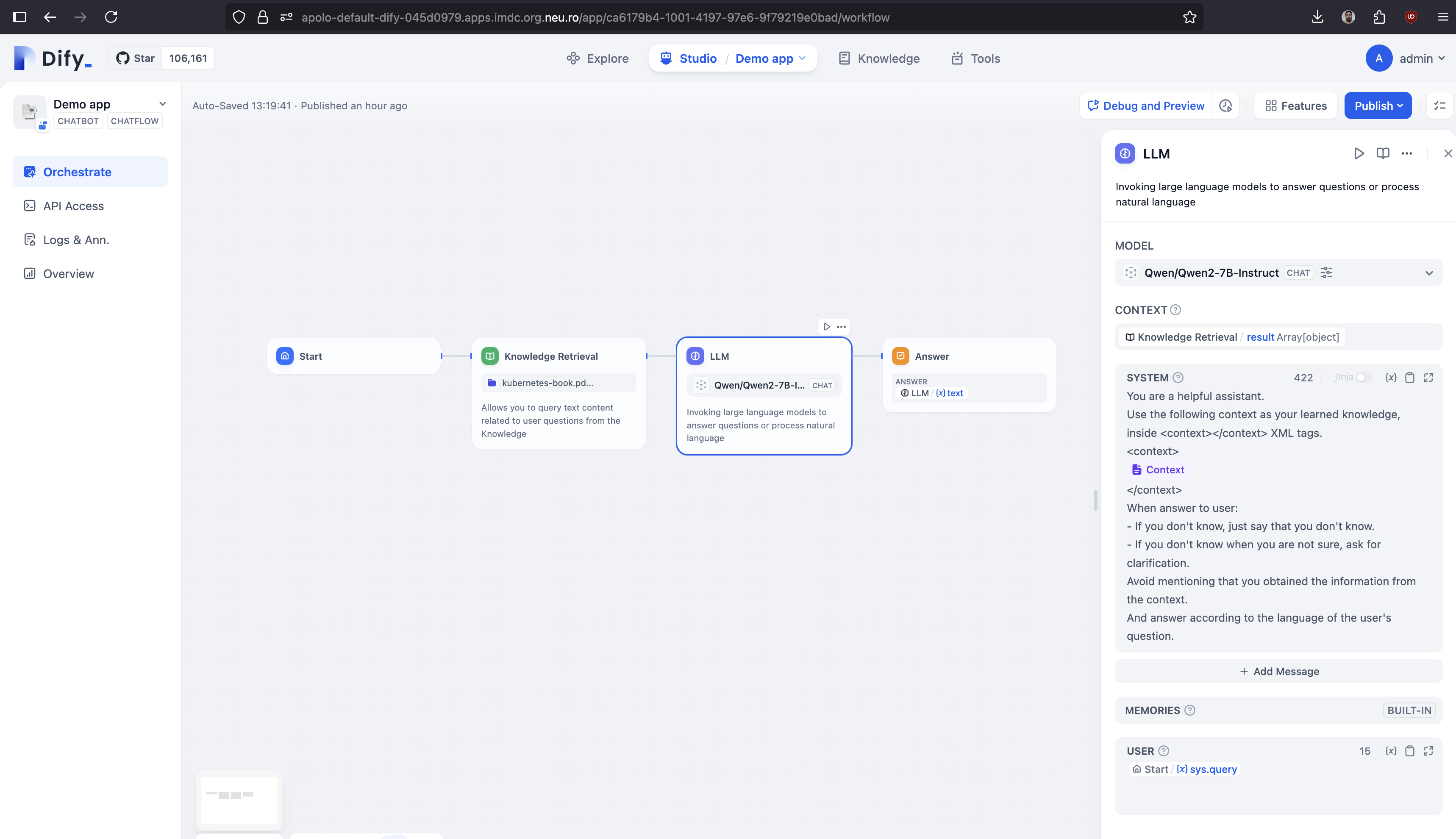
3. **Setup LLM**

   In the LLM block, select the model from previously configured vLLM integration, while for the context, select the output of knowledge retrieval. Do not forget to select the previously prepared knowledge in the knowledge block. You can also parameterize the LLM prompt and bunch of other features.

   The setup should look like this now:

   <figure><img src="https://3952707095-files.gitbook.io/~/files/v0/b/gitbook-x-prod.appspot.com/o/spaces%2FUD8kiAsnN8MKP7nzsJRQ%2Fuploads%2Fgit-blob-5c988e34a472e61ff8ce01885d891458fde56a02%2FScreenshot%202025-07-08%20at%2020.19.55.png?alt=media" alt=""><figcaption><p>Dify LLM setup</p></figcaption></figure>
4. **Publishing and testing**

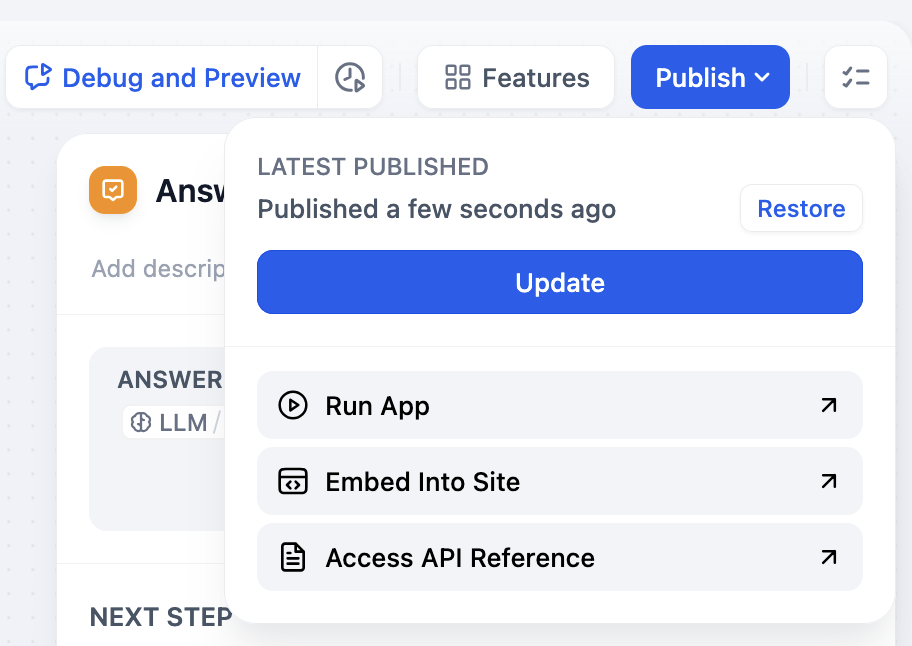
   At this step, your first RAG application is ready to be consumed by the end users. Click "publish" button. There you can find API description for this particular app that you can use to embed into your product, as well as directly share the application link.

   <figure><img src="https://3952707095-files.gitbook.io/~/files/v0/b/gitbook-x-prod.appspot.com/o/spaces%2FUD8kiAsnN8MKP7nzsJRQ%2Fuploads%2Fgit-blob-d964f0b4b297f819ba87c33e76b794a1c428fb14%2FScreenshot%202025-07-08%20at%2020.25.20.png?alt=media" alt="" width="375"><figcaption><p>Dify application publishing options</p></figcaption></figure>

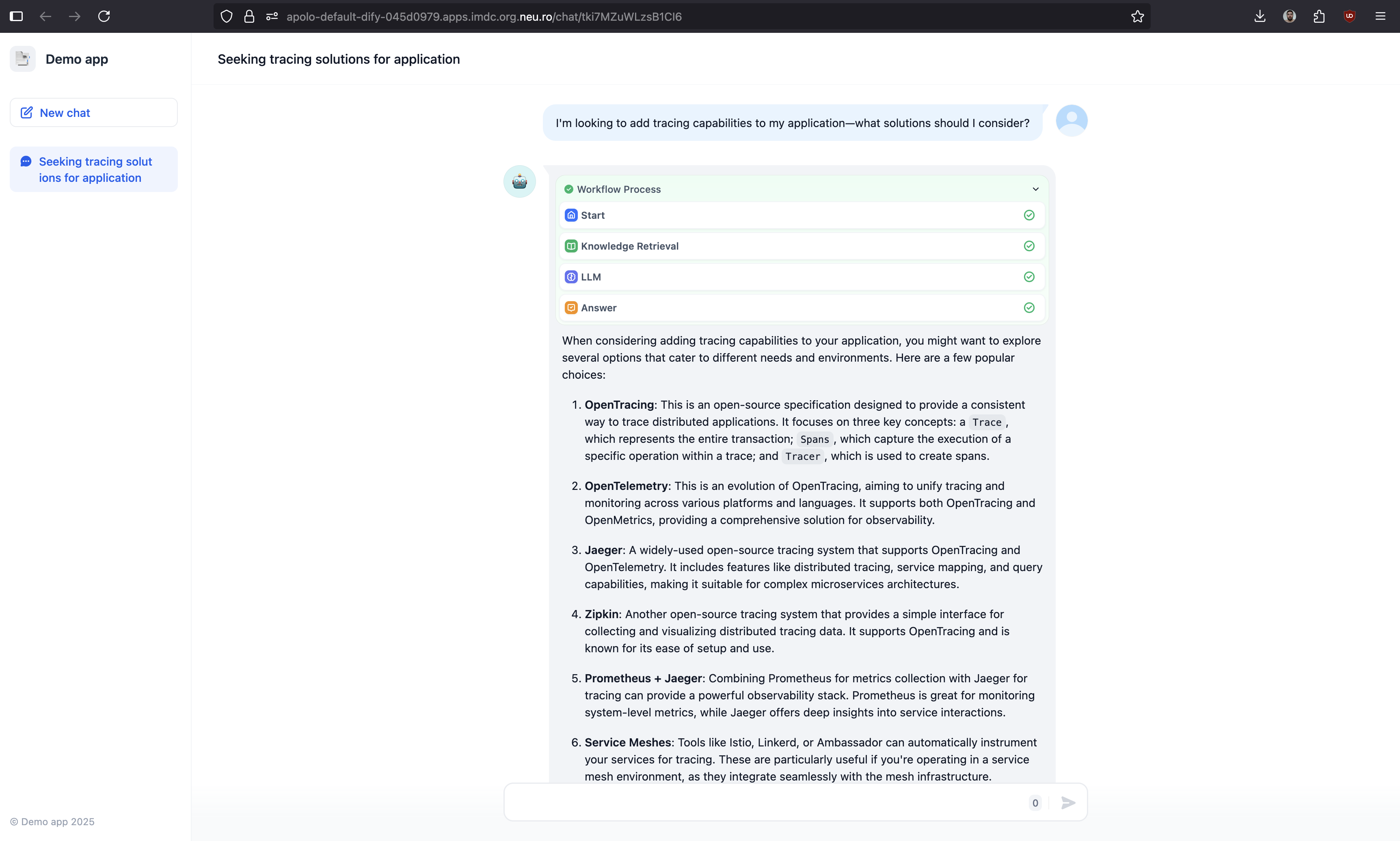
   Click "Run app" button to open a dedicated chat window and now you can ask some questions about the provided context.

   <figure><img src="https://3952707095-files.gitbook.io/~/files/v0/b/gitbook-x-prod.appspot.com/o/spaces%2FUD8kiAsnN8MKP7nzsJRQ%2Fuploads%2Fgit-blob-06272bc9fb89c60ecc35e2fe5875ffe19d1f304e%2Fimage.png?alt=media" alt="" width="563"><figcaption><p>Using Dify RAG application</p></figcaption></figure>
5. **Monitoring applications**

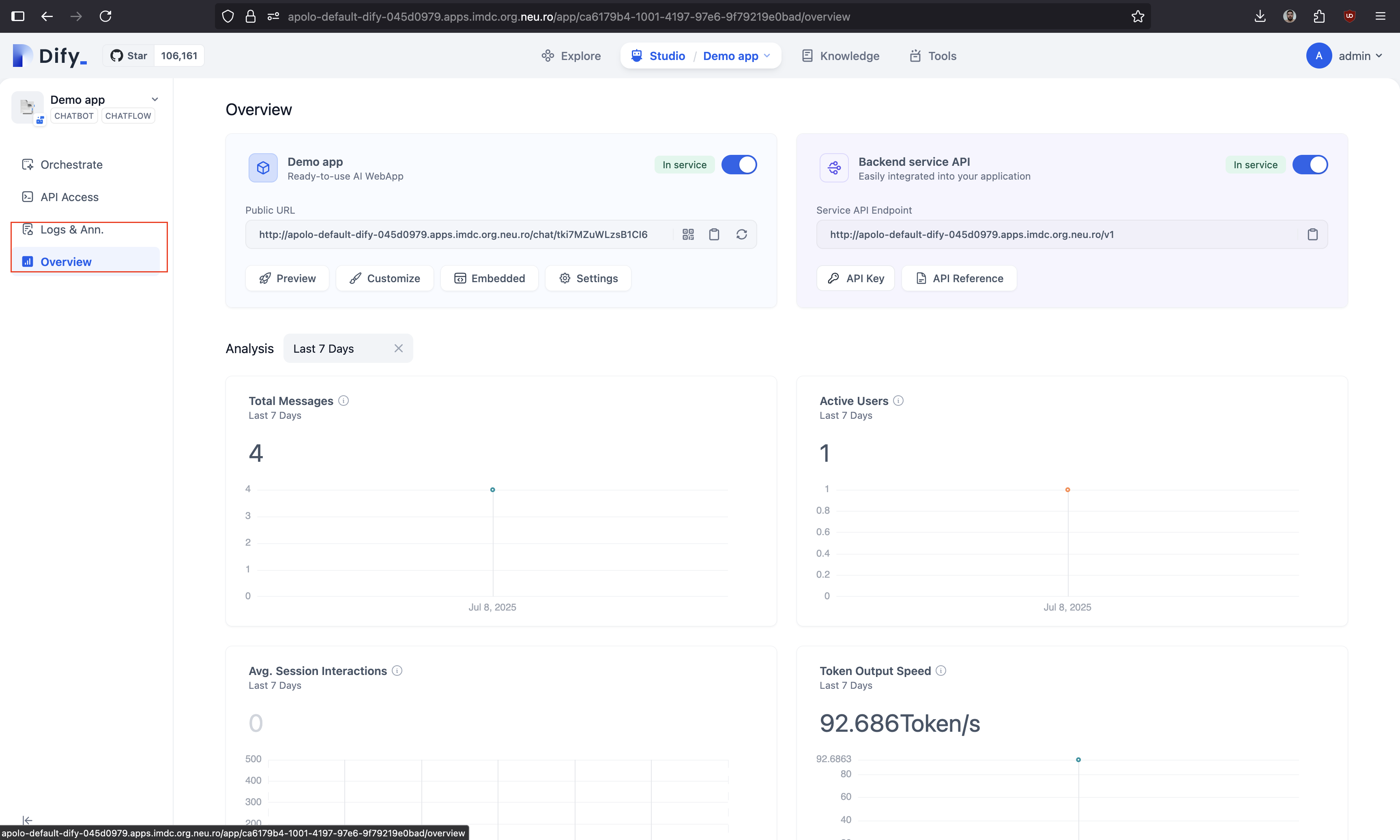
   Application usage logs, metrics and much more can be found on the corresponding sections within the application studio.

   <figure><img src="https://3952707095-files.gitbook.io/~/files/v0/b/gitbook-x-prod.appspot.com/o/spaces%2FUD8kiAsnN8MKP7nzsJRQ%2Fuploads%2Fgit-blob-0473817eb54e37d71ebc1f612c5c9d27a4231dc3%2Fimage.png?alt=media" alt=""><figcaption><p>Dify application usage overview</p></figcaption></figure>

As for the API usage, each particular application created within the Dify platform comes with embedded API documentation, that can be viewed by navigating to "Access API reference" from Dify apps publishing options.

### References

* [Apolo applications management documentation](https://docs.apolo.us/index/apolo-console/apps/installable-apps/managing-apps)
* [Apolo CLI Application template commands](https://app.gitbook.com/s/-MOkWy7dB5MDbkSII8iF/commands/app-template)
* [Dify application management via CLI](https://docs.apolo.us/index/apolo-concepts-cli/apps/installable-apps/available-apps/dify)
* [Dify helm chart documentation](https://github.com/neuro-inc/dify-helm)
* [Dify platform documentation](https://docs.dify.ai/)
* [Dify knowledge concept documentation](https://docs.dify.ai/en/guides/knowledge-base/readme)
* [PostgreSQL application management](https://docs.apolo.us/index/apolo-console/apps/installable-apps/available-apps/postgre-sql)
* [Apolo Buckets application](https://docs.apolo.us/index/apolo-console/apps/pre-installed/buckets)
* [Text Embeddings application management](https://docs.apolo.us/index/apolo-console/apps/installable-apps/available-apps/text-embeddings-inference)
* [vLLM application management](https://docs.apolo.us/index/apolo-console/apps/installable-apps/available-apps/llm-inference)